
Every page on your site gets a title tag and a meta description from Signocore SEO. You can write them per page in the editor, let templates fill them in for a whole content type, or leave both empty and use the automatic fallback.
How a title and description are chosen
For a post, page or other post type, Signocore SEO uses the first of these that has a value:
- The Document Title or Meta Description you wrote in the SEO box.
- The template for that post type.
- The automatic fallback: the post title, and a description taken from the excerpt or, without one, from the content, shortened to about 160 characters.
Categories, tags and author archives follow the same order with their own fields and templates. Their automatic title is based on the term name or the author's name, and their automatic description comes from the term description or the author's biography.
A few pages work differently:
| Page | Where the title and description come from |
|---|---|
| Homepage that shows your latest posts | The Home Page SEO fields, see below |
| Static homepage, posts page and WooCommerce shop page | The page's own SEO box, then the Pages template |
| Search results | The title "Search for" and the search phrase |
| Date archives | The title "Archives for" and the date |
| 404 page | The title "404 - Page not found" |
On page 2 and later of a paginated listing, "• Page 2 of 5" is added to the title and the description.
Home page
If your homepage shows your latest posts (Settings → Reading), set its title and description under Signocore SEO → General in the Home Page SEO card:
- Document Title and Meta Description. They start out with your site title and tagline and take effect when you click Save Changes. Both accept placeholders.
- Search Results: turn on Hide from search results to add a noindex tag to the homepage.
With a static homepage, the card is hidden. Edit the SEO box of the page you use as the homepage instead.
Title settings
The Title Settings card on Signocore SEO → General has two options:
| Option | Default | What it does |
|---|---|---|
| Append To Title | On | Adds " • " and your company name to the end of the title tag, but only when the full title stays within 60 characters and does not already contain the company name. It is never added to titles that come from a template. |
| Title separator | - |
The character that the %%sep%% placeholder prints. It does not change the " • " used by Append To Title. |
The company name is the Company Name field on Signocore SEO → Company, which starts out as your site title.
Templates
Templates fill in titles and descriptions for every post, term or author that has none of its own.
- Go to Signocore SEO → General and find the Title & Description Templates card.
- Each post type (except Media), taxonomy and the author archive has a title and a description field, labeled for example Posts: Title, Categories (Posts): Description and Author archive: Title.
- Type your template, and use Insert placeholder to add dynamic values such as the post title or the current year.
- Click Save Changes.
Leave a template empty to keep the automatic fallback. Because a template decides its own branding, Append To Title does not add the company name to templated titles: include %%sitetitle%% or your brand name in the template if you want it there.
Placeholders depend on where they are used. In a category or tag template, use %%term_title%% rather than %%title%%. See Template placeholders for every placeholder and where it works.
On a multilingual site (for example with WPML, Polylang or Signocore Multilanguage), the templates and the Home Page SEO fields are saved per language. Switch the admin to a language before you edit. A field you leave empty in a language uses the value from your primary language, and Copy from primary language fills it in for you.
The SEO box in the editor
The Search Engine Optimization - Signocore SEO box appears below the editor on posts, pages and other public post types. It has five tabs: SEO Settings, Social, Scripts, Links and SEO Health.
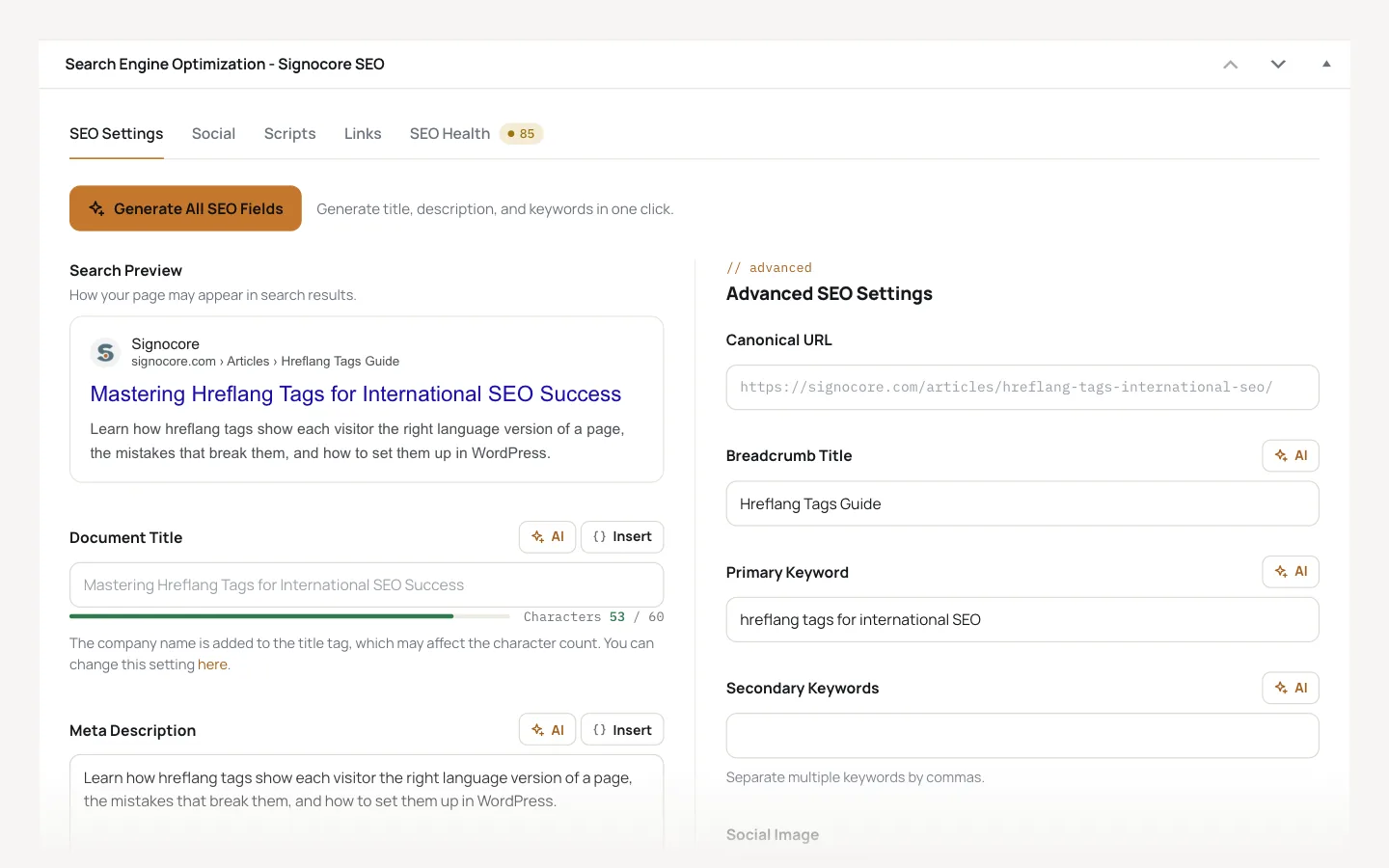
The AI buttons and Generate All SEO Fields write suggestions for you with Signocore SEO Pro, see AI generation.
Search preview and length counters
Search Preview shows how the page may look in search results: your site icon, company name, address, title and description, shortened to the width search results allow. It updates as you type.
Under Document Title and Meta Description, a counter shows the number of characters, and a bar shows how much of the available width the text uses. Hover over it for advice such as "Good length: this fits nicely in search results." Aim for 30 to 60 characters in titles and 70 to 160 in descriptions.
Document Title and Meta Description
Once the post has been saved, an empty field shows in gray the text the template or the automatic fallback will use. Type your own text to override it. Insert adds a placeholder.
Hide a page from search engines
Under Search Engines, turn on Hide this page from search engine results. The page gets a noindex tag and is left out of the XML sitemap.
If a rule already hides the page, for example a noindex rule on Signocore SEO → Visibility, the switch reads "(auto)". To take control of this page yourself, click Disable auto noindex and update the page. As its tooltip says, this cannot be undone for the page. See Sitemaps, indexing and robots.txt for the rules.
Canonical URL
Leave Canonical URL empty and the page points to its own address, which is right for almost every page. Enter a full URL only when this page duplicates another one and search engines should rank the other. A trailing slash is added to match your permalink settings.
Breadcrumb Title
A shorter name for the page in breadcrumbs, for example "Hreflang Tags Guide" for a long article title. Empty means the page title is used.
Primary and secondary keywords
Primary Keyword is the search phrase the page should rank for. Secondary Keywords are related phrases, separated by commas. The SEO Health checks use both, and the primary keyword also counts toward keyword coverage on the SEO Dashboard.
Social image and social preview
Social Image is the image shown when the page is shared. Without one, the featured image is used, and without that, the Default Social Image from Signocore SEO → Social. Images uploaded while Signocore SEO is active get a 1200 × 630 pixel crop for sharing; older images are shared as the original file.
The Social tab previews the page as a Facebook, X / Twitter and LinkedIn card, with its title, description and image.
SEO Health
The SEO Health tab scores the page out of 100 and lists what to fix first, with a Go to field link where the fix is in a field. The checks include:
- Primary keyword in the document title, meta description, H1 headline, content and URL.
- Secondary keywords in the meta description, H2 to H6 headlines and content.
- Document title length, meta description length and content length (240 words, or 160 for products).
- Whether the document title and meta description are unique on your site.
- Keyword density, shown as advice only, not scored.
Checks that do not apply, such as secondary keyword checks without secondary keywords, are skipped. A score of 90 or more counts as good, and below 60 as poor.
Next to the score, a readability estimate shows how easy the text is to read (from Very Easy to Difficult) and the reading time. Readability suggestions appear when many sentences are long or many words are complex. Readability is informational and not part of the score.
The analysis is based on the saved content, so it refreshes when you save or update the post.
Links
Pro: This needs a Signocore SEO Pro license.
The Links tab shows the internal links in the content and the published posts that link to this one. Find Links suggests related content to link to, based on your content, keywords and tags, with a Copy URL button for each suggestion.
Primary category
When a post is in more than one category, pick the main one in the Select Primary Category box in the sidebar. Only categories assigned to the post can be picked. The primary category fills the %%category%% placeholder. If your permalinks include the category, it also decides the post's address and its breadcrumb trail, and visitors who reach the post through another category's address are redirected to that address.
Scripts and schema
The Scripts tab adds code to the head or body of this page only, see Analytics, verification and scripts. Schema Type and Custom JSON-LD are covered in Structured data.
Categories, tags and authors
The same SEO fields appear on the edit screen of each category, tag and custom taxonomy term (not on the form for adding a new one), and on user profiles for author archives.
Bulk Editor
Signocore SEO → Bulk Editor lets you edit the SEO title, meta description and focus keyword of many published posts on one screen.
- Pick a post type, or All post types.
- Pick a filter, such as Missing SEO title, Duplicate description or Fewer than 240 words, or type a search term.
- Click Filter.
- Type in the fields. Each row saves automatically a moment after you stop typing, and shows "Saved" when done.
The table shows 20 posts per page. An empty SEO Title field shows the title the template or post title gives the page. You can type placeholders in the SEO title and description fields.
The cards on Signocore SEO → Dashboard open the Bulk Editor with the matching filter. With Pro, the Bulk Editor can also generate AI suggestions for empty fields, see AI generation.