
Pro: This needs a Signocore SEO Pro license.
Signocore SEO Pro can write titles, descriptions and keywords, draft content and create images with your own account at Anthropic, OpenAI, Google Gemini or Mistral.
Before you start
You need an account and an API key at one of the providers. Requests go straight from your site to the provider, and the provider bills your account for them. After each request, the plugin shows how many tokens it used, for example "This request used 812 tokens."
Connect a provider
- Go to Signocore SEO → Integrations and find the Artificial Intelligence card.
- Choose a provider in AI Provider: Anthropic (Claude) (the default), OpenAI (GPT), Google (Gemini) or Mistral AI.
- Paste your key into the field for that provider: Anthropic API Key, OpenAI API Key, Google Gemini API Key or Mistral API Key. Each field links to the page where you create a key.
- Click Save Changes.
- Click Verify connection next to the key. The test uses a request that costs no tokens.
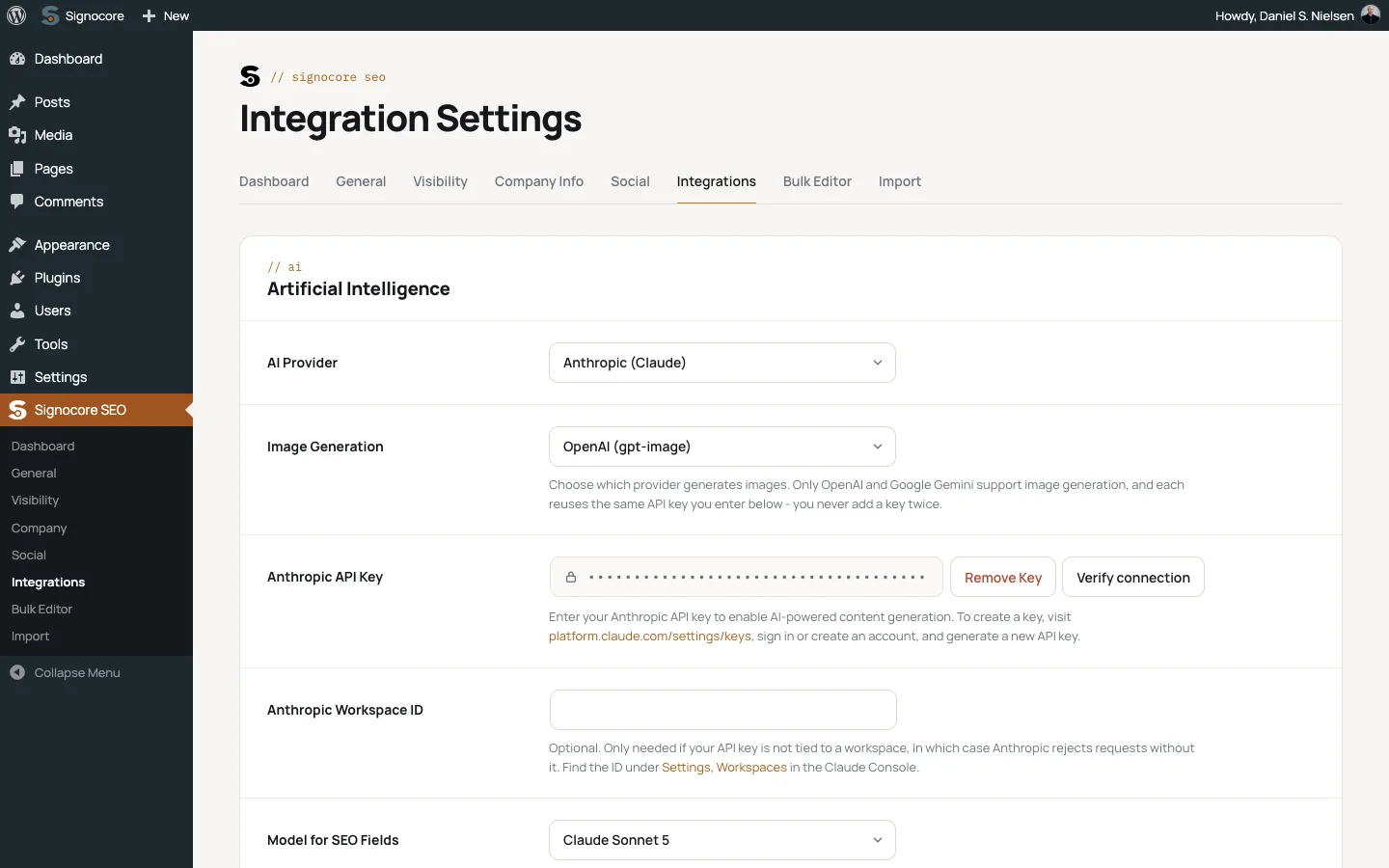
A saved key is masked and locked. To replace it, click Remove Key and enter the new one. Keys are stored in your WordPress database, and the plugin stops using them if your Pro license is no longer active.
Anthropic workspace ID
Anthropic Workspace ID is optional. Fill it in only if your API key is not tied to a workspace, in which case Anthropic rejects requests without it. You find the ID under Settings, Workspaces in the Claude Console.
Choose a model
With Anthropic you choose the models yourself:
| Setting | Options | Default | Used for |
|---|---|---|---|
| Model for SEO Fields | Claude Haiku 4.5, Claude Sonnet 5, Claude Opus 5.5 | Claude Sonnet 5 | Titles, descriptions, breadcrumb titles, keywords, TL;DR summaries and Bulk Editor suggestions |
| Model for Content | Claude Sonnet 5, Claude Opus 5.5 | Claude Sonnet 5 | Outlines and full articles |
Haiku 4.5 is faster and cheaper. Opus 5.5 is the most capable and costs more. Sites updated from a version before 6.0 keep Claude Haiku 4.5 for SEO fields, the model those versions used, until you choose another one. For OpenAI, Google Gemini and Mistral, Signocore SEO picks the models and there is no model setting.
Tone and image style
These fields appear once a key is saved:
- Content Tone: Formal, Casual or Creative.
- Default Image Style: the style for images you generate from the post editor, so your social and featured images look alike. Choose Default (no specific style), Photorealistic, Illustration, 3D render, Minimal or Corporate. Shown when an image provider is set.
- Image Accent Color: an optional brand color woven into generated images. Shown when an image provider is set.
Image generation
Choose a provider in Image Generation: Disabled (the default), OpenAI (gpt-image) or Google (Gemini). Only these two can create images, and each reuses the key you entered for it. If you write with Claude or Mistral and want images too, also add an OpenAI or Google Gemini key.
Generate SEO text in the editor
The SEO box on posts, pages, other content types, terms and author profiles has AI buttons. On an author profile, they write from the biography.
- Generate All SEO Fields fills Document Title, Meta Description, Breadcrumb Title, Primary Keyword and Secondary Keywords in one go.
- The AI button next to each of those fields fills only that field.
The text lands in the fields for you to edit. Nothing is saved until you update the post or term. Read more about the fields in Titles, descriptions and templates.
Draft content
Under Content Generation in the SEO box of a post or page:
- Generate Outline writes headings and bullet points from the title and primary keyword.
- Generate Content writes a full article from the title and primary keyword. If the editor holds an outline, the article follows it.
- Generate TL;DR adds a short summary as the first paragraph, starting with "TL;DR:".
Outlines and articles need a title, and the TL;DR needs content in the editor. Outlines and articles replace what is in the editor. The plugin asks before it replaces existing content, except when an article is written from an outline in the editor.
Note: Read and edit AI-written text before you publish it.
Generate images
In the post editor
In the SEO box, Social Image and Featured Image each have a Generate with AI button. The image is built from the SEO title (or the primary keyword), the keyword and the meta description, in your Default Image Style, and is set as that image right away.
AI Image Generator
Go to Media → AI Image Generator:
- Describe the image in Description.
- Optionally pick a Style and things to Avoid, such as No people or No text.
- Choose a Size: Auto, Square (1:1), Landscape (3:2) or Portrait (2:3). Quality applies to OpenAI only.
- Click Generate image. This can take up to a minute.
The image is saved to your media library, as WebP when your server supports it and as PNG otherwise.
Batch generation in the Bulk Editor
Go to Signocore SEO → Bulk Editor and use the Generate AI suggestions panel:
- Filter the list to the posts you want to fill.
- Choose the fields: Title, Description and Keyword. The first two are checked by default.
- Choose Posts on this page or All matching posts (max 100).
- Click Generate. Stop ends the run early.
- Review each suggestion and click Accept or Reject, or use Accept all on this page.
Suggestions are only created for empty fields, and nothing goes live until you accept it. The panel shows how many posts and tokens the last run used.
Automatic image alt text
Pro also fills in missing alt text for new images, but this does not use AI or an API key. The alt text is built from the image title, so a file named red-sofa_living-room.jpg gets the alt text "Red Sofa Living Room". This also applies to images you generate.
What is sent to the provider
Each request contains the text below plus the plugin's instructions, such as the tone and the language to write in.
| Feature | Sent to the provider |
|---|---|
| AI buttons and Generate All SEO Fields | The title or the first 320 characters of the content, depending on the field, and the primary keyword |
| Generate Outline | The title and primary keyword |
| Generate Content | The title, primary keyword and the outline in the editor |
| Generate TL;DR | The post text, up to 60,000 characters |
| Bulk Editor suggestions | The title and the first 6,000 characters of the content |
| AI Rank on the Links tab | The first 1,000 characters of the content and the titles of the suggested pages |
| Images | Your description and style choices. From the editor: the title or keyword and the meta description |
Check your provider's terms for how they store and use API data.