
Every translation is its own post, page or term, linked to the original in a group with one item per language. You write, schedule and publish a translation in the normal WordPress editor, with its own title, slug and content.
Choose what can be translated
Go to Signocore ML → General. The Translatable Content card has two lists:
- Translatable Post Types: on a new install, posts, pages and media.
- Translatable Taxonomies: on a new install, categories and tags.
Tick your custom post types and taxonomies, such as products or portfolio items, and click Save Changes. The lists show the public post types and taxonomies registered on your site. Content that has no language yet counts as default-language content. Developers can change the lists in code with signocore_ml_translatable_post_types and signocore_ml_translatable_taxonomies.
The Translations box
When you edit a post, page or other translatable item, the Translations box sits in the editor sidebar.
- Language is the language of the item you are editing. A new post starts in the default language. To write it in another language, pick that language and save. Languages that already have a translation in the group cannot be picked.
- Translations lists the other languages with a status: Not translated, Draft, Published or Source changed.
For a language that has no translation yet, you can:
| Action | What it does |
|---|---|
| Create | Creates an empty draft titled like "[ES] Translation of: About us" and opens it. |
| Duplicate | Creates a draft copy with the content, custom fields, featured image, categories and tags of the original, and opens it. |
| Link | Searches by title among your drafts and published items of the same type that are not linked to other translations yet and that you can edit, so you can connect one that already exists as the translation. For a media item, it searches the Media Library. |
| Translate with AI | With Pro, translates the item with your AI provider and saves the result as a draft. See AI translation. |
When you duplicate, each category and tag, the featured image and the parent page are replaced with their translation where one exists, so translate your terms and parent pages before the pages below them. A page whose parent has no translation in that language yet gets no parent; set it later, or let Parent page under sync set it. For a language that has a translation, Edit opens it and Unlink removes the link. Unlinking keeps both items, each in its own language.
Note: Anyone who can edit an item can link it, unlink its translations and copy content into it, as long as they can also edit the other item. Create, Duplicate and Translate with AI also need the right to add items of that type. The Translations box only shows the buttons you can use.
Copy content from the original
In a translation, Copy content from English (with the language of the original) replaces the title, content, excerpt and custom fields with those of the original. It is useful after Create, when you want to start from the original text. The translation's own canonical URL from an SEO plugin is kept.
Categories, tags and other terms
Terms are translated on their edit screen. When you edit a category, the Translations section has the same Language field and the same list of languages, with Create, Link and, with Pro, Translate with AI. Create adds a term named like "[ES] Translation of: News" and opens it, so you can set the translated name and slug. When you add a new term, choose its language in the Language field.
On the front end, category and tag lists only show terms in the current language.
Work in your content lists
Post, page and term lists, and the Media Library in list view, get extra tools once two languages are active.
Translations column
The Translations column shows a flag for each other language. Click a flag to edit that translation. A faded flag in a dashed frame means there is no translation yet, and clicking it creates an empty draft, like Create. When you cannot add items of that type, the faded flag is not a link. A dot on a flag marks a draft or a translation whose original has changed. Hover over a flag to see which, for example "Create Spanish translation".
Language tabs
Lists show the default language when you open them. The tabs above the list switch to All languages or to one language, with the number of items in each. The tabs appear once content exists in two languages, and the status links, such as Published and Drafts, count within the chosen language.
Filter by translation status
The Translation status dropdown next to the date filter narrows the list to items that are Missing: Spanish, or to Source changed since translation. Pick an option and click Filter.
Row and bulk actions
Hover over an item to see links such as Duplicate to Spanish for up to three languages without a translation. Terms get Translate to Spanish, which creates an empty term translation.
To translate many items at once:
- Tick the items in the list.
- In Bulk actions, choose Duplicate as translation to... for posts, pages and media, or Create translation in... for terms.
- Choose the language in the Target language dropdown next to it.
- Click Apply.
A notice sums up the result, for example "3 items duplicated to Spanish as drafts." Items that already have a translation in that language are skipped. One run handles at most 50 items.
Row actions, bulk actions and the Translation status filter are available to administrators.
The admin bar
The admin bar shows the current language, with a menu that links to each translation of the item you are editing or viewing, or offers to duplicate or create the missing one when you are allowed to.
Media
Media items are translatable on a new install. A translated media item uses the same file as the original, so nothing is uploaded twice. It starts with the original's title, caption, description and alternative text, and you edit them in the new language.
In the Media Library, open a media item, click Edit more details, and click Create or Duplicate in the Translations box on that screen. Both make the same translated media item. Link connects a media item that already exists. In the Media Library's list view, the row actions, the bulk action and the language tabs work as for posts. When you delete one media item, the file stays as long as another translation of it still uses it.
On pages in another language, images show the alt text of the media item's translation, both as featured image and in the content, unless the alt text was changed in the content itself. Captions that WordPress reads from the media item, such as featured image and gallery captions, show the translated caption. A caption typed into an Image block stays as written. When you duplicate a post, or the featured image is kept in sync, the translation gets the translated media item as its featured image where one exists. Images in the content keep pointing to the original media item.
Menus
Each language gets its own menu, linked to the menu of the default language.
- Go to Appearance → Menus and open the menu of your default language. Leave it assigned to its menu location.
- In the Menu Translations card, find the row for a language, for example Spanish.
- Click Create to add an empty menu named like "Main Menu (ES)", or choose an existing menu in the list and click Save Menu to link it.
- Click Edit on the new menu and add the items in that language.
On Spanish pages, the plugin shows the Spanish menu wherever your theme shows the linked default-language menu. This works for classic menus, which your theme displays in a menu location. The Navigation block in block themes is not swapped this way.
To add language links to a menu, see Language switcher.
Keep translations up to date
When you change the title, content or excerpt of an original and save it, each translation made from it is flagged Source changed. The flag shows in several places:
- In the translation's Translations box, with the date the original changed. Open original opens the original in the editor, Mark as up to date clears the flag, and with Pro, Retranslate with AI replaces the text with a fresh translation. Saving the translation also clears the flag.
- As a dot on the flag in the Translations column, and under Source changed since translation in the Translation status filter.
- In the Needs Attention list on Signocore ML → Dashboard.
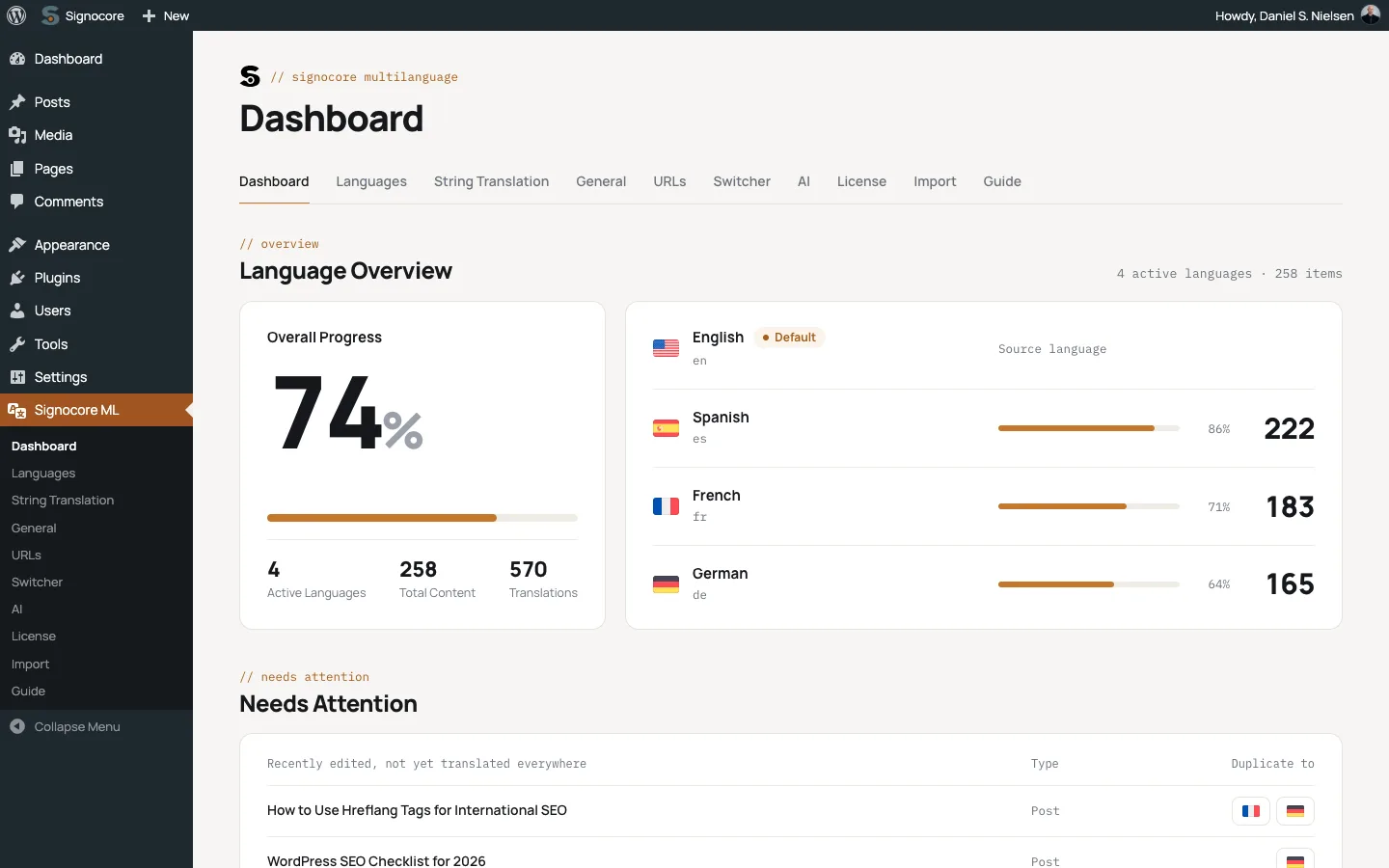
The dashboard also lists recently edited posts that are not yet translated into every language, with a flag for each missing language that duplicates the post into it.
Keep fields in sync between translations
Go to Signocore ML → General and find the Synchronise Between Translations card. Under Fields to Keep in Sync, tick what should stay the same in every language, and click Save Changes. Nothing is synced until you tick it. The options are:
- Featured image
- Page template
- Categories, tags and other taxonomies (mapped to their translations)
- Menu order
- Parent page (mapped to its translation)
- Comment and ping status
- Sticky post
- Publish date (only from published posts)
- Custom fields listed below, with Pro, see below
Terms, parent pages and featured images are mapped: a Spanish translation gets the Spanish version of each category, parent page or featured image where one exists. When you save an original, the ticked fields are copied to its translations. A translation receives them once when it is created or linked, and saving a translation never changes the original. Titles, content and other text are never synced.
Custom fields
Pro: This needs a Signocore Multilanguage Pro license.
- Tick Custom fields listed below.
- In Custom Field Keys, enter one custom field key per line, such as
price. Use*as a wildcard, for examplehero_*. - Click Save Changes.
Fields that plugins use internally are never synced. Developers can change the synced fields in code with signocore_ml_sync_fields. Custom field sync stays a Pro feature, also when code adds it.
Pages built with Elementor
Pages built with Elementor are copied with their layout when you duplicate them, on every plan. Open the copy in Elementor and translate the text.
What visitors see
On the front end, the main list on each page, such as the blog, an archive or search results, only shows content in the current language. To show untranslated items in those lists while a language is still being translated, or to send visitors from a missing translation to the default language, see Visitor language and fallbacks.
Note: Blocks and widgets that fetch posts on their own, such as the Latest Posts block, a Query Loop block that does not inherit the page's query, or the Recent Posts widget, list posts in every language. A developer can limit them to the current language with the template functions.
With Pro, a translation can keep the same slug as its original, see Shared slugs.