
Text that does not live in a post, page or term, such as widget titles, text you set in the Customizer, date formats and WooCommerce email subjects, is translated on the String Translation screen. Open it under Signocore ML → String Translation.
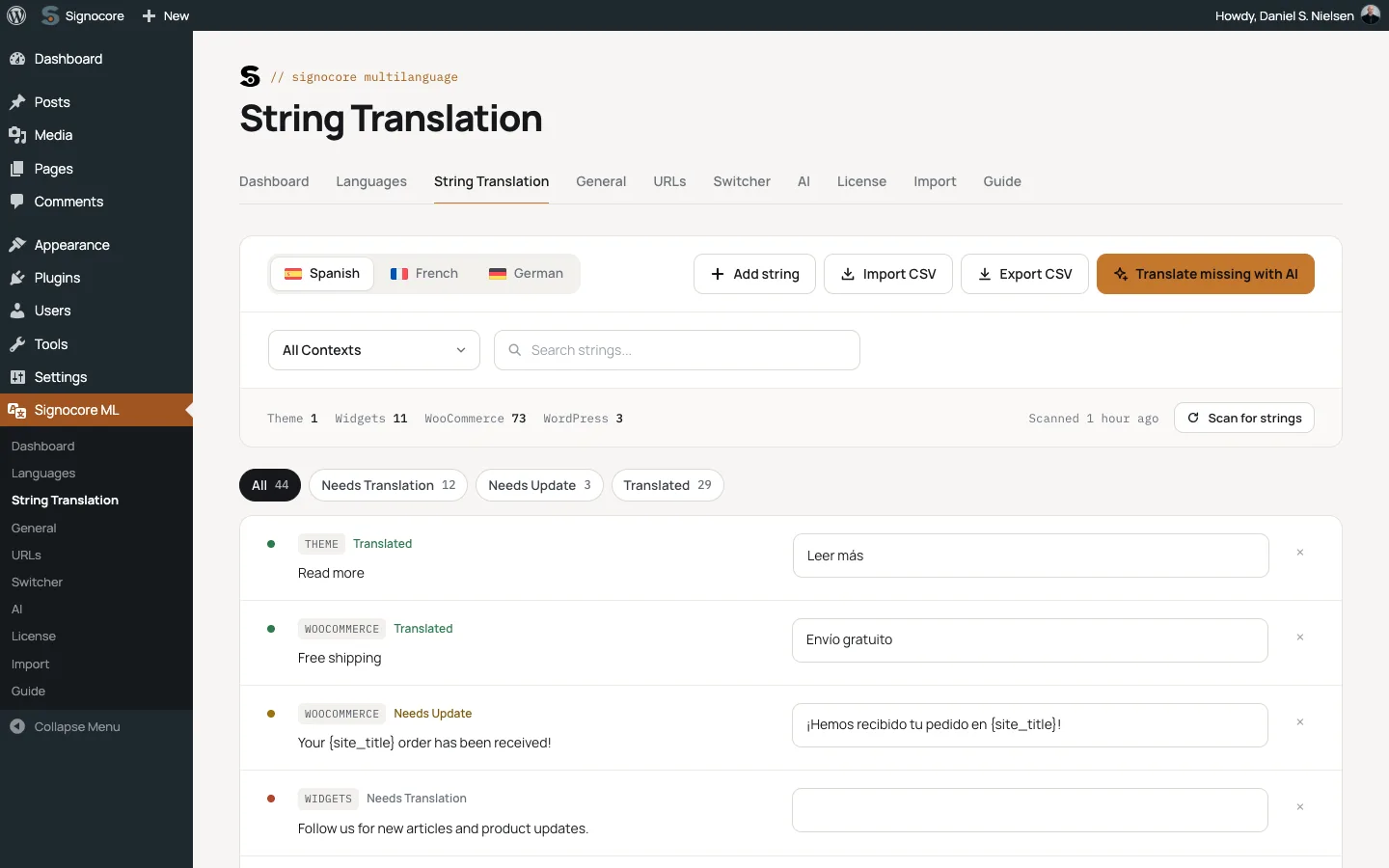
Translate a string
- Pick the language you translate into with the buttons at the top. There is one for every language except your default language.
- Narrow the list with All Contexts, Search strings... or one of the status buttons. Clear filters resets them.
- Type the translation in the field next to the original text.
Each translation is saved shortly after you stop typing, and when you leave the field. Save all changes saves anything that is still waiting, and the browser warns you before you leave the page with unsaved changes.
| Status | What it means |
|---|---|
| Needs Translation | There is no translation in this language yet. Visitors see the original text. |
| Needs Update | The original text changed after it was translated. Visitors still see the old translation until you save a new one. |
| Translated | Visitors in this language see your translation. |
To go back to the original text, empty the field. The string returns to Needs Translation.
The × at the end of a row deletes the string and its translations. A string found by a scan comes back at the next scan.
Note: The screen needs at least one active language besides your default language. Until then it shows "Add at least one non-default language to start translating strings."
Scan for strings
Signocore Multilanguage looks through your site settings for translatable text. The scan runs by itself when you open the screen, at most once every 12 hours, and only while at least two languages are active. The bottom of the toolbar shows how many strings each context holds and when the last scan ran.
Click Scan for strings to scan right away, for example after you add a widget, change a Customizer setting or add a payment method. When the scan finds that an original text has changed, its translations are marked Needs Update.
Contexts
Every string belongs to a context, which tells you where it comes from.
| Context | What it holds |
|---|---|
| WordPress | The date format and time format. |
| Widgets | Titles of the widgets in your widget areas, the content of Text, Custom HTML and block widgets, and the caption and alt text of Image widgets. Widgets under Inactive Widgets are skipped. |
| Theme | Text saved in the Customizer, such as a footer line or a button label. Colors, URLs, numbers and other settings that are not text are skipped. |
| WooCommerce | Email subjects, headings and additional content, payment methods, shipping methods and product attribute labels. Needs Pro, see WooCommerce stores. |
| Custom | Strings you add yourself, unless you gave them another context. |
Hover over the context label of a row to see the name of the string, such as text-2_title for the title of a widget.
For the date and time formats, enter a PHP date format with the same letters as under Settings → General. For example, d/m/Y shows September 5, 2026 as 05/09/2026.
Developers can add their own strings to the scan with signocore_ml_scan_strings.
Site title and tagline
Translate the site title and tagline under Signocore ML → General, in the Site Title & Tagline card:
- Click a language above the fields. Your default language edits the site title and tagline of WordPress itself.
- Fill in Site Title and Tagline for that language. An empty field shows the default-language text.
- Click Save Changes.
The card appears once at least two languages are active.
Note: Earlier versions also listed the site title and tagline in the WordPress context on the String Translation screen, where translations had no effect. The next scan removes those entries. A translation you entered there moves to the Site Title & Tagline card when that language has no text in the card yet.
Add your own strings
Add your own strings for text in templates, page builders or anywhere else a shortcode works.
- Click Add string.
- Fill in Context (
Customunless you change it), Name, for examplehero_cta, and Source text (default language). Context and name can be up to 160 characters, and each combination can only be used once. - Click Add string. The screen shows the shortcode for the new string.
- Translate the string in the list like any other.
Place the shortcode shown after you add the string where the text should appear:
[sml_string context="Custom" name="hero_cta"]
Visitors in your default language see the source text you entered, and so do visitors in a language without a translation. You can also put the default-language text in the shortcode as default, such as default="Get started". The shortcode then shows that text in your default language, and adds the string to the list by itself if it does not exist yet, see below. The shortcode prints plain text, so HTML in the text or its translations is shown as characters rather than applied.
A [sml_string] shortcode with a default also adds its string to the list by itself the first time the page is viewed, when the string does not exist yet. This works in content written by editors and administrators, and not in previews.
All attributes are in Shortcodes, blocks and widgets. In PHP templates, use signocore_ml_translate_string() from Template functions.
Import and export as CSV
Use CSV files to send strings to a translator or to move translations between sites.
Export CSV downloads every string with its translations as signocore-ml-strings- followed by the date. The file has one row per string: context, name, type and source, then one column for each language except the default, named by its language code.
context,name,type,source,es,fr,de
Custom,hero_cta,line,Get started,Empezar,Commencer,Loslegen
To import:
- Click Import CSV.
- Choose the file and click Import.
- The screen reports how many translations were imported, how many new strings were created and how many rows were skipped.
How rows are read:
- The first row must name the columns, with at least
contextandname. Language columns are matched by language code, and only active languages other than the default are read. - A filled cell replaces the current translation. An empty cell is skipped, so an import never removes a translation.
- A row whose context and name are not on the site yet becomes a new string when its
sourcecell is filled. Without a source, the row is skipped. textin thetypecolumn gives the string a multi-line field. Anything else gives it a single line.- Files larger than 5 MB are not accepted. Save the file as CSV with commas between the columns.
Spreadsheet programs run a cell that starts with =, +, - or @ as a formula. The export puts an apostrophe in front of such cells, and the import removes it again.
Translate strings with AI
With Pro and an API key, Translate missing with AI translates every string with the status Needs Translation in the selected language. If you picked a context, only that context is translated. The translations are saved and go live right away, also in customer emails, and you can edit them in the list afterwards. Strings marked Needs Update are not included. See AI translation.
Text you translate elsewhere
| Text | Where to translate it |
|---|---|
| Posts, pages, products, terms, media and menus | In the editor and on Appearance → Menus, see Translate posts, pages and terms. |
| Site title and tagline | Signocore ML → General, see above. |
URL bases such as /category/ |
Signocore ML → URLs, see Language URLs. |
| Text written into theme or plugin code, such as a button or form label | The theme's or plugin's own translation files. |
WordPress loads the translation files for each language's locale, so a theme or plugin that ships a translation for that locale shows it automatically. If the Languages screen says Translation files not installed next to a language, click Install them now. For a theme or plugin without a translation in your language, ask its developer or create the file with a translation editor.