
Free and Pro are the same plugin. You install Signocore Multilanguage once, pick your languages in a short setup wizard, and a license key switches on the Pro features when you need them.
Before you install
- Check that your site runs a supported WordPress and PHP version on the platform support page. On a PHP version that is too old, the plugin pauses itself and shows a notice with the version it needs.
- If your site uses WPML or Polylang today, read Switch from WPML or Polylang first. It explains the order to do things in, so you keep your existing translation links.
Install the plugin
- Download the zip file from https://download.signocore.com/signocore-multilanguage.
- In WordPress, go to Plugins → Add New Plugin and click Upload Plugin.
- Choose the zip file and click Install Now.
- Click Activate Plugin.
A Signocore ML menu appears in the admin sidebar, and WordPress opens the setup wizard.
Run the setup wizard
The wizard has three steps: Languages, URLs and Done. Until you finish or skip it, it opens again whenever you visit a Signocore ML page.
Step 1: Choose your languages
- Tick the languages your site should be available in, for example English and Spanish. Use the search field to find a language by its English name, its native name or its code.
- Select Default on the language your existing content is written in. Your existing posts, pages and terms get this language.
- Click Next.
You need at least two languages. On the free plan you can pick two, and the other languages are locked once you reach that limit.
Step 2: URL structure
- Choose how the addresses of your languages look:
- Directory Prefix:
example.com/es/about-us/. Free. - Subdomain:
es.example.com/about-us/. Pro, and needs DNS setup. - Custom Domains:
example.es/about-us/. Pro, and needs a domain for each language.
- Directory Prefix:
- Leave Hide language prefix for default language on to keep the addresses of your default language as they are, such as
example.com/about-us/instead ofexample.com/en/about-us/. It applies to Directory Prefix; with subdomains and custom domains, the default language always stays on your main domain. - Turn on Send first-time visitors to the language their browser prefers if you want that. It applies to the front page only, and you can refine it later, see Visitor language and fallbacks.
- Click Next.
Language URLs explains the three options, including the DNS and SSL setup that subdomains and separate domains need.
Note: If you choose Custom Domains, enter the domain for each language afterwards on Signocore ML → URLs. Until a language has a domain, it cannot be reached.
Step 3: Done
The last step sums up your languages and URL structure. Click Go to Dashboard to finish the wizard, or Translate your first post to finish it and open the post editor.
Skip or re-run the wizard
Every step has a Skip Setup link. Skipping finishes the wizard without changes. If no language is set up yet, the plugin adds the language of your WordPress site as the default and gives your existing content that language, and you add the others on Signocore ML → Languages.
To run the wizard again, go to Signocore ML → Dashboard and click Re-run setup wizard in the Your Plan card. Languages you keep are left as they are. A language you untick is removed, or deactivated if it already has posts or terms. The wizard asks you to confirm before it deactivates anything.
Manage your languages
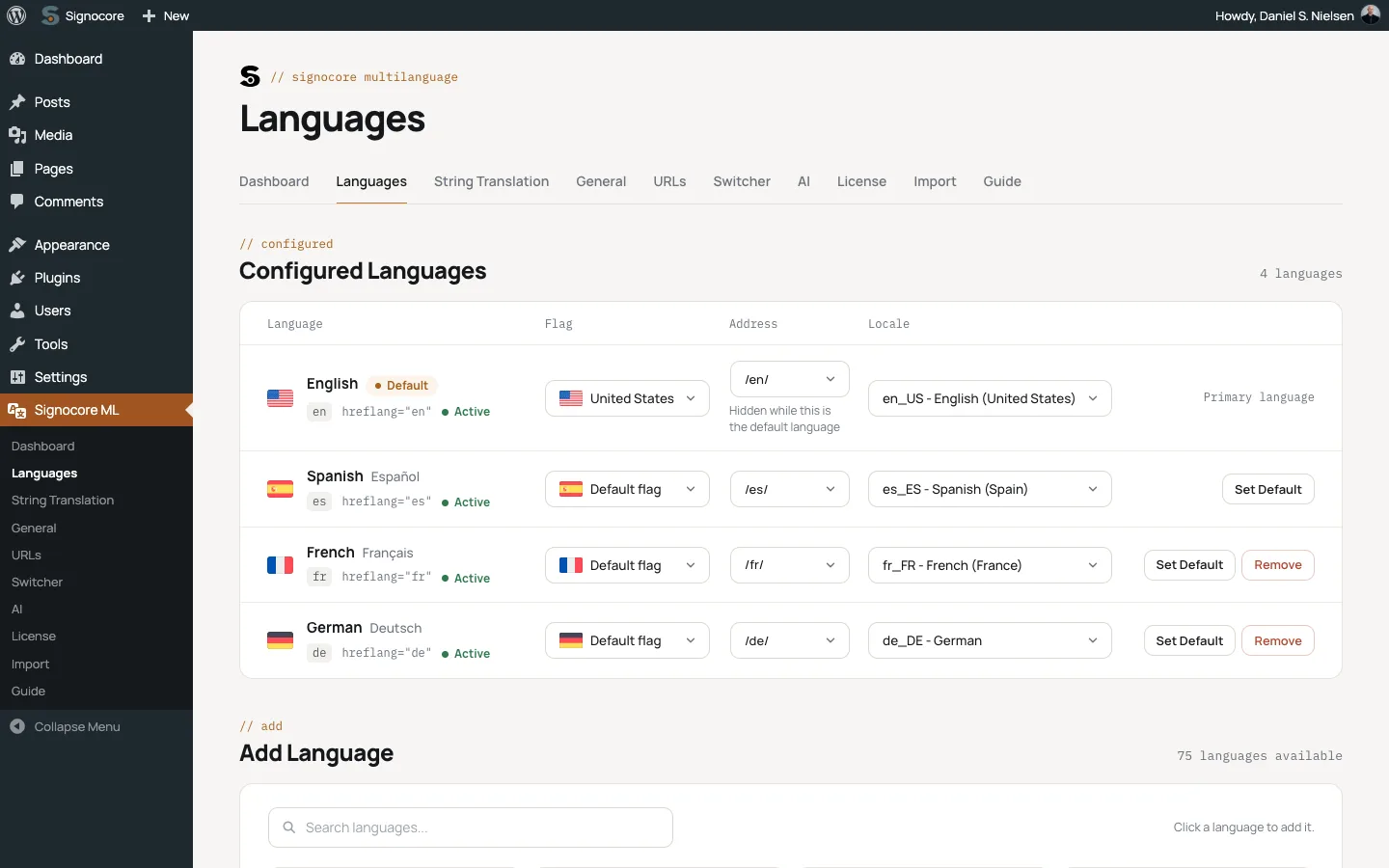
After the wizard, you manage languages on Signocore ML → Languages.
Add a language
- Under Add Language, type in Search languages... to narrow the list.
- Click a language to add it.
The new language is active right away. When WordPress is allowed to install language packs on your site, the plugin also installs the WordPress translation files for the language's locale. Otherwise the Locale column says "Translation files not installed." with an Install them now link for users who can install languages.
On the free plan, Add Language shows "Free plan limited to 2 languages" once two languages are active.
Set the default language
Click Set Default on an active language. The default language is the language your content gets when nothing else is chosen, and with the prefix hidden, it is the language without a prefix in its addresses.
Important: Changing the default language on a live site changes addresses. With the prefix hidden, the new default loses its prefix and the old default gets one. See Language URLs before you change it.
Order, flags and right-to-left languages
Languages keep the order you added them in, on this screen and in the language switcher.
The Flag column sets the flag shown for a language. Default flag uses the language's own flag. Pick another from the list, for example the United States flag for English, and it is saved right away.
Right-to-left languages need no setting. When a visitor views Arabic, Hebrew, Persian, Kurdish or Urdu, the page is marked as right to left, so your theme can lay it out that way.
Address and locale
The Address column shows the part of the URL that identifies the language, such as /es/. Languages with more than one possible address, such as Spanish (Mexico) with /es-mx/, /es/ or /mx/, get a list to choose from. See Language URLs before you change it.
The Locale column decides which WordPress translation files the language uses. Spanish, for example, can use es_ES for Spain or es_MX for Mexico. The choice is saved as soon as you pick it.
Deactivate or remove a language
Click the Active label next to a language to deactivate it, and Inactive to activate it again. An inactive language keeps its content, but visitors cannot see it. The default language cannot be deactivated.
Remove only appears for a language that has no posts or terms. Removing cannot be undone. A language that has content can only be deactivated.
Activate your Pro license
Pro: This needs a Signocore Multilanguage Pro license.
- Go to Signocore ML → License.
- Enter the email address you used for the purchase in License Email.
- Enter the license key you received after the purchase in License Key.
- Click Save Changes.
When you save, the plugin checks the license with the Signocore license server. The email address and the key must both match your purchase. Once the license is accepted, the License Key card shows Pro and "All features unlocked.", the Pro badges disappear, and the Go Pro menu item goes away.
To check the license again later, click Verify license next to the key. The result appears below the field, for example "License verified - Pro features are active." If the key is not accepted, WordPress shows the notice "The license key seems invalid" until you enter a valid one.
If the license server cannot be reached, Pro keeps working with the last license it verified.
What Pro unlocks
- Unlimited active languages.
- Subdomains and separate domains per language, translated bases for custom post types and taxonomies, and shared slugs, see Language URLs.
- Sync of custom fields between translations, see Translate posts, pages and terms.
- AI translation of posts, terms and strings.
- WooCommerce stores, and the Yoast SEO and Rank Math integration, see Multilingual SEO.
Change or remove the license key
A saved key is masked and cannot be edited. To use a different key:
- Click Disable license next to the key and confirm.
- Enter the new key and click Save Changes.
Disabling the license removes the key and the email address and switches the Pro features off. Settings you made with Pro are kept and work again once a license is active.
Important: Subdomain and domain addresses depend on an active Pro license. Without one, those addresses no longer show the right language. Switch the URL strategy back to Directory before you disable a license on a site that uses them.
Updates
Signocore Multilanguage updates from Signocore's own update server, not from WordPress.org. When a new version is available, WordPress lists it under Dashboard → Updates and on the Plugins screen.
- WordPress checks for updates on its own schedule. To check right away, click Check again on Dashboard → Updates.
- A new version is only offered when your site meets the WordPress and PHP versions it requires. See platform support.
- If an update cannot be downloaded because the saved license key is not valid, the Plugins screen asks you to enter a valid key.
- After an update, the plugin checks your license again.
Deactivate or delete the plugin
Deactivating Signocore Multilanguage clears its cached data and rebuilds WordPress's address rules. Your languages, translation links and settings stay in the database. While the plugin is inactive, WordPress no longer knows which language a post is in: translations show up next to their originals, and addresses with a language prefix stop working.
Deleting the plugin from the Plugins screen removes all of its data: languages, the links between translations, string translations, settings including the license key, the settings of its widgets, and the language data stored on posts, terms, menus and users. Your posts, pages, terms, media and menus stay, including the translated copies, which become ordinary content without a language.
Important: Deleting cannot be undone. Take a database backup first if you might want the translation links back.