
Signocore Glossary adds a glossary to your WordPress site: a glossary page with an A-Z index and a search field, a page for every term, synonyms and related terms. When you want it, the plugin also links mentions of your terms in posts and shows a short definition on hover.
Install the plugin
- Download the zip file from https://download.signocore.com/signocore-glossary.
- In WordPress, go to Plugins → Add New Plugin and click Upload Plugin.
- Choose the zip file and click Install Now.
- Click Activate Plugin.
A Glossary menu appears in the admin sidebar, with All Terms, Add New Term, Tags and Settings. Signocore Glossary runs on the WordPress and PHP versions listed on the platform support page.
Set up the glossary page
The glossary lives on an ordinary page that you choose. Whatever you write on that page stays above the glossary, so it is a good place for an introduction.
- Go to Pages → Add Page, give the page a title such as "Glossary", write an introduction if you like and publish it.
- Go to Glossary → Settings.
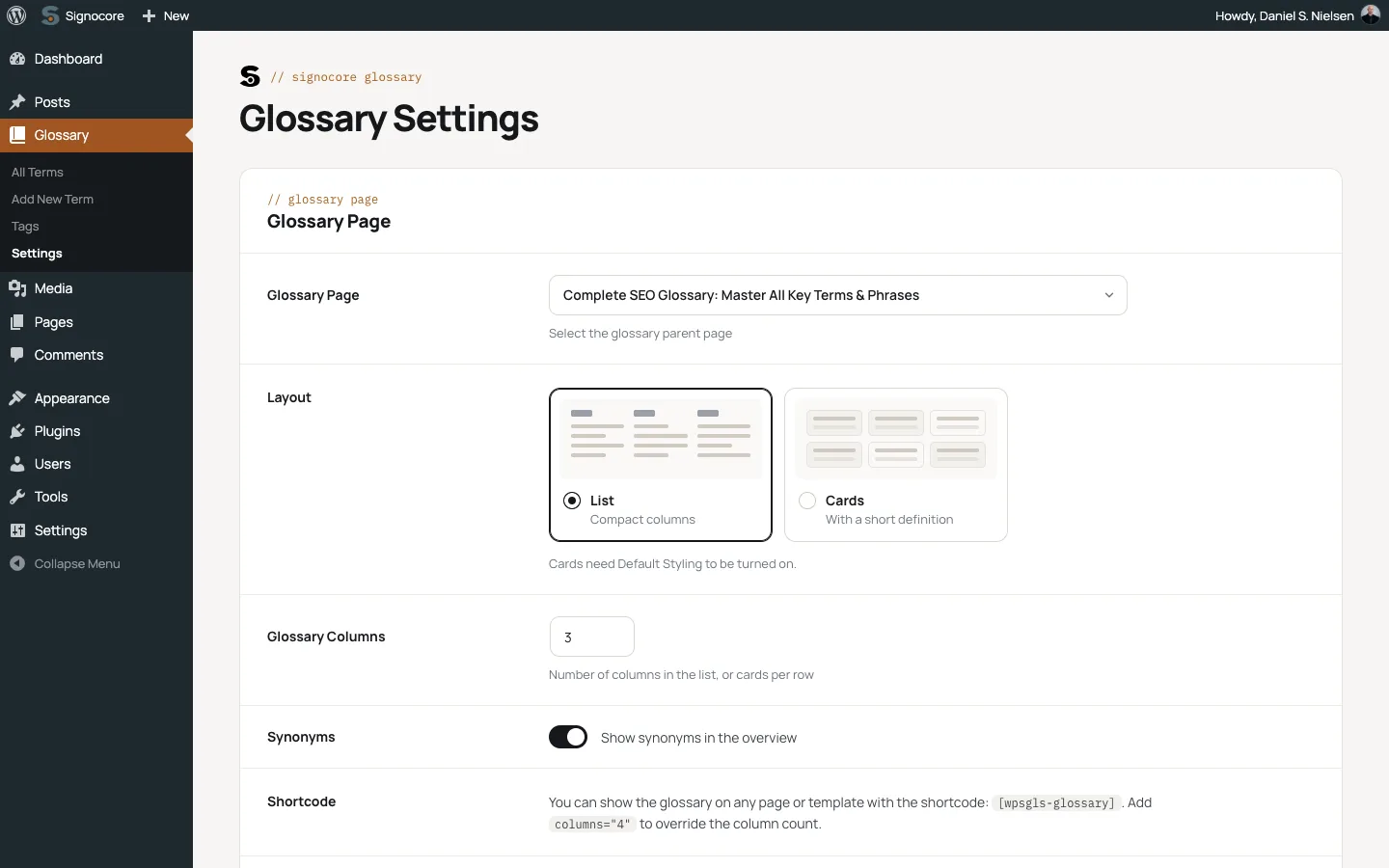
- In the Glossary Page card, choose the page under Glossary Page.
- Click Save Changes.
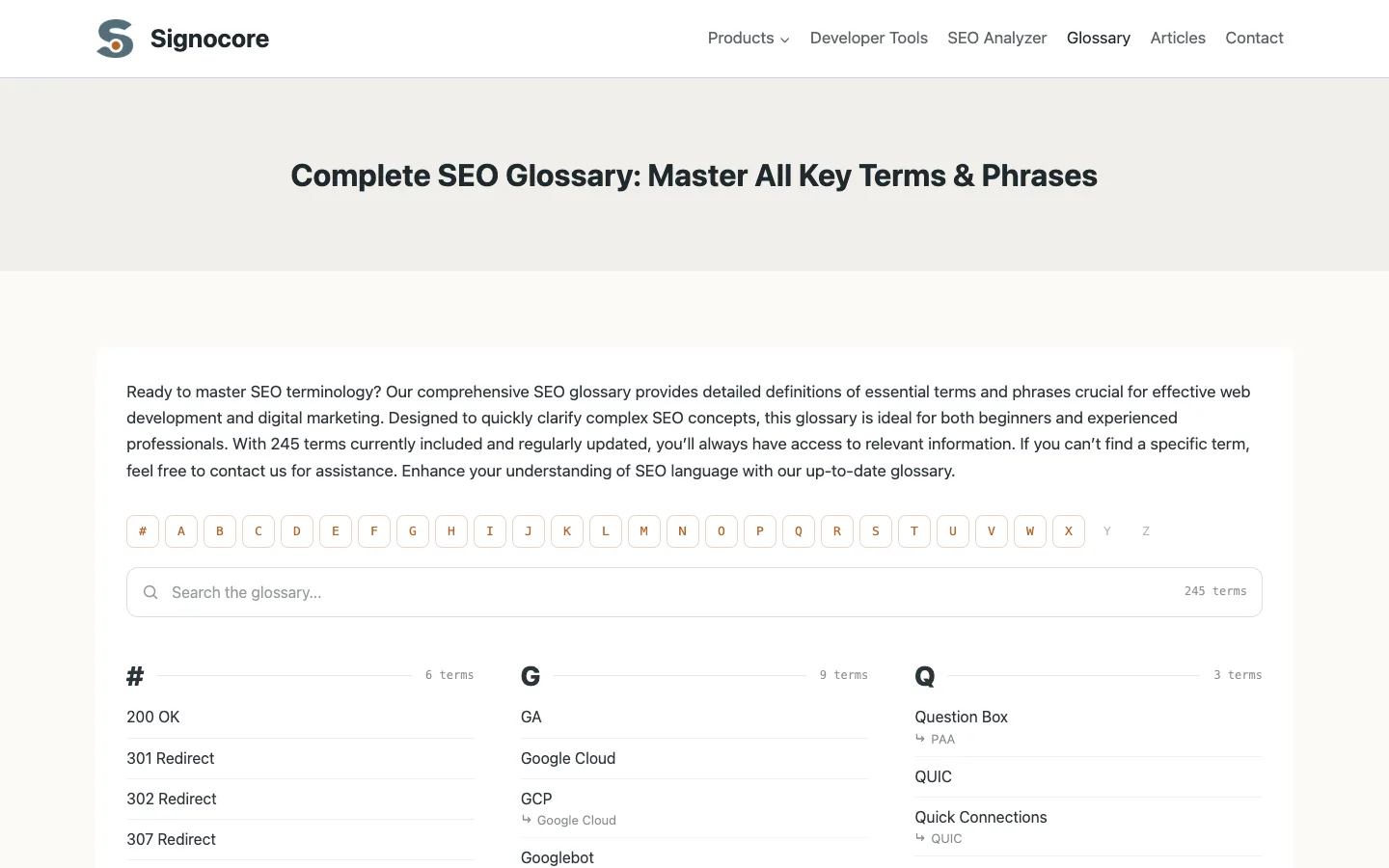
The letter index, the search field and the list of terms now appear below the page content, and the page carries the label "Glossary Page" in your list of pages. To place the glossary somewhere else on the page, add the [wpsgls-glossary] shortcode where you want it. The automatic list is then left out. See Shortcodes, widgets and related content.
The page's slug is also the start of every term address. With a glossary page at example.com/glossary/, the term "API" gets the address example.com/glossary/api/. Until you choose a page, term addresses start with /glossary/. When you change the glossary page or its slug later, save the settings again, so WordPress picks up the new addresses.
Layouts
The Glossary Page card has three settings for the list:
| Setting | Default | What it does |
|---|---|---|
| Layout | List | List shows compact columns of terms under each letter. Cards shows each letter as a full-width section with a card per term and the start of its definition. Cards need Default Styling to be turned on. |
| Glossary Columns | 3 | From 1 to 6. The number of columns in List, or the most cards per row in Cards. Narrow screens show fewer columns, so the terms stay readable. |
| Synonyms | On | Lists each synonym under its own letter in the glossary, with the term it leads to shown below it. |
A card shows the first 14 words of the term's excerpt, or of its definition when the excerpt is empty.
Add terms
- Go to Glossary → Add New Term.
- Enter the term itself as the title, such as "API".
- Write the definition in the editor.
- In the Glossary Settings box below the editor, fill in a Custom Headline or Synonyms if you need them. Both are optional and explained below.
- Add tags. Terms that share a tag are shown as related terms.
- Click Publish.
The excerpt is optional too. When you write one, it is used for the short definition in tooltips and cards. Otherwise those show the first words of the definition.
Headlines and the title template
On a term page, the headline is built from the Term template in the Term Pages card of the settings. The default template is "What does [term] mean?", where [term] is replaced by the term, so "API" gets the headline "What does API mean?". The default template applies until you change it, and an empty template shows the plain term.
To give a single term a different headline, fill in Custom Headline. The field shows the generated headline as a placeholder, so you can see what you are replacing. The glossary list, tooltips and related lists always use the term itself.
Synonyms
Enter synonyms in the Synonyms field, separated by commas, such as Application programming interface, Web API. Synonyms are:
- shown at the top of the term page, under the label "Synonyms:"
- listed in the glossary under their own letter when Synonyms is on
- linked to the term when automatic linking is on
- found by the Search Glossary Terms widget
Term pages
A term page shows the headline, the synonyms and your definition. Below the definition come the related terms: up to 10 published terms that share at least one tag with the term, under the heading "Terms related to" followed by the term. The most viewed terms come first, followed by terms that have not had a counted visit yet, in alphabetical order. Turn the list off with Related Terms in the Term Pages card.
With Signocore FAQ active, term pages can also list related questions. See Shortcodes, widgets and related content.
Views are counted when a visitor opens a term page. Visits by administrators, previews, search engine bots and other automated requests are not counted. To see the numbers, open Glossary → All Terms, click Screen Options and turn on the Views column.
On themes built on Genesis, Kadence or Signocore Slate, the related terms appear in the theme's area after the content. On other themes they are added to the end of the content. With Signocore SEO, the breadcrumb trail of a term page runs from the home page through the glossary page to the term. With Signocore Multilanguage, the trail uses the glossary page's translation in the visitor's language when there is one.
The A-Z index and search
The letter bar at the top of the glossary always shows # and the alphabet of the site language. Letters with terms are links that jump to their section, and letters without terms are dimmed. Terms that start with a digit are filed under #.
- Danish and Norwegian: A to Z followed by Æ, Ø and Å. Ä is filed under Æ and Ö under Ø.
- Swedish and Finnish: A to Z followed by Å, Ä and Ö. Æ is filed under Ä and Ø under Ö.
- Spanish: A to Z with Ñ right after N.
- Every other language: A to Z.
Any other letter with an accent or mark is filed under its base letter, so "Élan" is listed under E and "Über" under U. First letters from other scripts, such as Greek or Cyrillic, get a key of their own after the alphabet, in alphabetical order for the site language when the server has the PHP intl extension.
The search field below the letters filters the list while you type. It matches the terms and synonyms themselves, not their definitions. The number at the right of the field counts every term and synonym in the list.
Settings
Go to Glossary → Settings. The screen has five cards, and only administrators can open it. Click Save Changes when you are done. Saving also refreshes the stored copy of the glossary, which is otherwise rebuilt whenever you save or delete a term.
| Card | Settings |
|---|---|
| Glossary Page | Glossary Page, Layout, Glossary Columns and Synonyms, described above. The card also shows the Shortcode and Counter shortcodes. |
| Term Pages | Term template and Related Terms (on). With Signocore FAQ active, also Related FAQs (on). |
| Related Content | Blog Posts and Tag Archives, and with WooCommerce Products. See Shortcodes, widgets and related content. |
| Glossary Links | Automatic Linking (off), Tooltips (off), Content Types (Posts) and Links per Post (10). See Automatic links and tooltips. |
| Styling | Default Styling (on). |
Default Styling loads the plugin's stylesheet for the glossary page, term pages and widgets. It takes the fonts and colors from your theme, so it fits light and dark designs. Turn it off to style everything in your theme. The Cards layout needs it, and tooltips always load their own small stylesheet.
Where to go next
- Automatic links and tooltips: link your terms in posts and show short definitions.
- Shortcodes, widgets and related content: place the glossary anywhere and connect terms with posts, questions and products.
- Multilingual glossaries: one glossary per language.
- For developers: the filter, meta keys and CSS classes.