
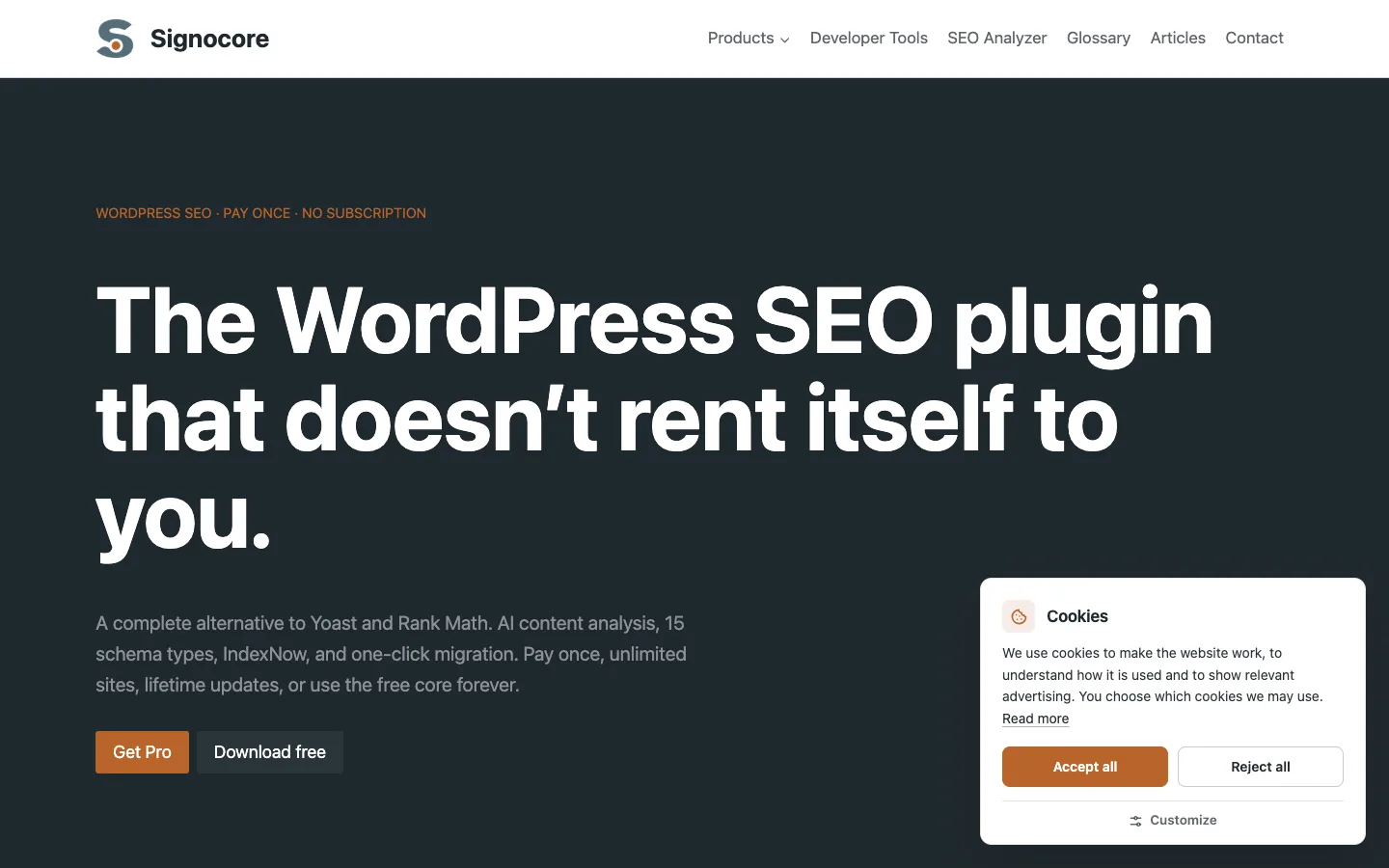
Signocore Consent adds a cookie consent banner to your site, remembers each visitor's choice and passes it on to Google tags through Consent Mode v2. Scripts you mark wait until the visitor agrees. The banner is on as soon as you activate the plugin.
Install the plugin
- Download the zip file from https://download.signocore.com/signocore-consent.
- In WordPress, go to Plugins → Add New Plugin and click Upload Plugin.
- Choose the zip file and click Install Now.
- Click Activate Plugin.
The banner shows on your site right away, with the default text and position. Signocore Consent runs on the WordPress and PHP versions listed on the platform support page, and updates arrive in Dashboard → Updates like any other plugin.
Set up the banner
Go to Settings → Cookie consent, or click Settings under the plugin on the Plugins screen. Change what you need and click Save Changes.
| Setting | Default | What it does |
|---|---|---|
| Cookie consent | On | Shows the banner and sends the Google Consent Mode v2 signals. Turn it off and neither is printed, and the plugin loads no script or stylesheet. |
| Banner position | Bottom right | Bottom right, Bottom left or Full width at the bottom. On phones the banner always spans the screen. |
| Banner text | Empty | Your own text for the banner. Plain text only. Leave it empty to show "We use cookies to make the website work, to understand how it is used and to show relevant advertising. You choose which cookies we may use." |
| Remember the choice for | 365 days | How long a visitor's choice is kept, from 30 to 730 days. A value outside that range is saved as the nearest limit. When it runs out, the banner shows again. A new value applies to choices made after you save. |
| Settings button | On | A floating cookie button that lets visitors reopen the cookie settings. It sits in the bottom left corner with Bottom left, otherwise in the bottom right. If you turn it off, add a cookie settings link instead. |
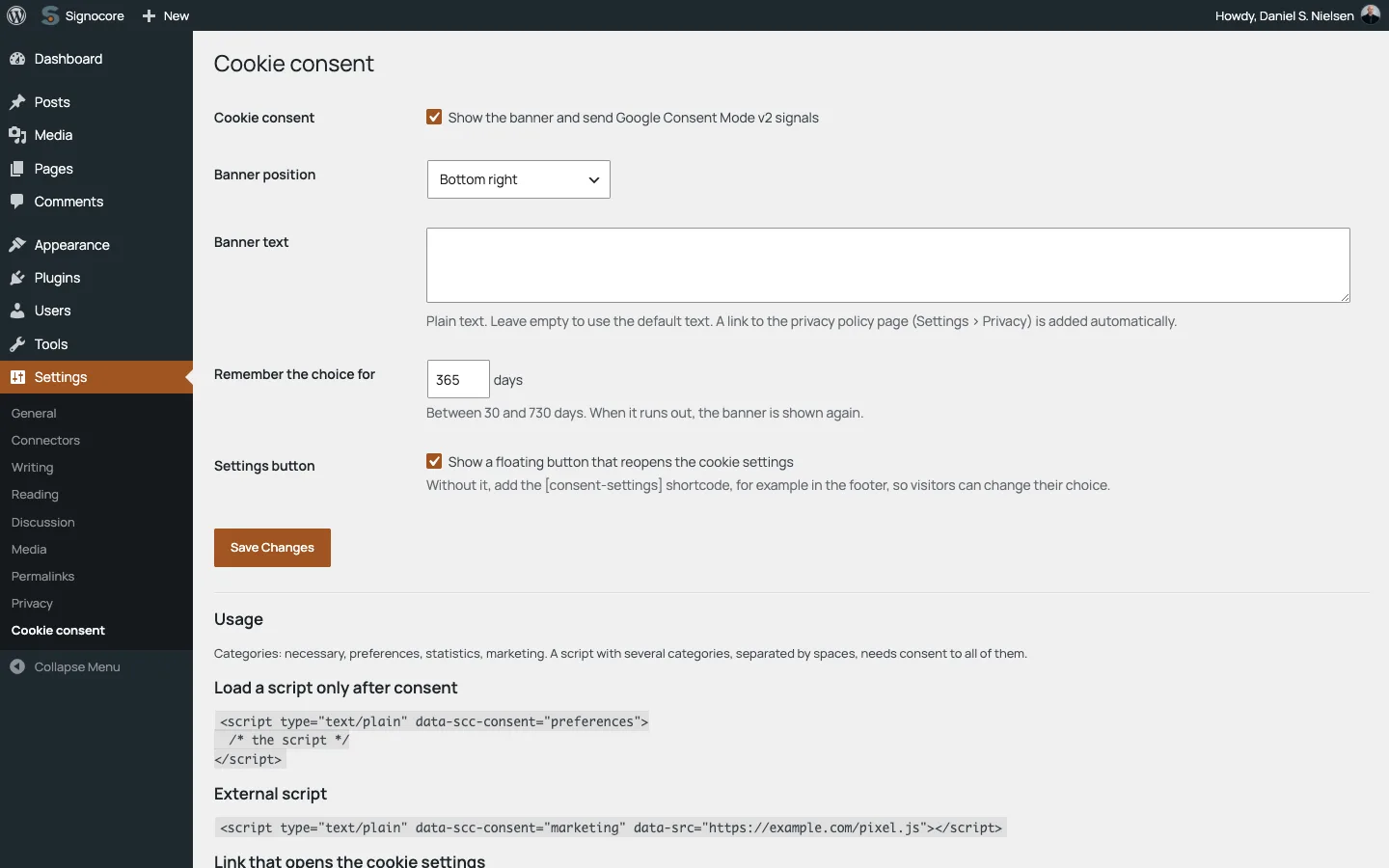
Below the settings, the Usage section repeats the markup for held-back scripts and settings links, so you have it at hand while you work.
Privacy policy link
The banner adds a Read more link after the text when your site has a privacy policy page. Choose the page under Settings → Privacy in WordPress and make sure it is published.
Texts and languages
The banner title (Cookies), the buttons, the category names and the settings window come from the plugin's translations and follow your site language. The plugin includes English and Danish. For other languages, translate the plugin's strings with a translation plugin or a .po file of your own, and write the banner text itself in the Banner text setting.
What visitors see
- On the first visit, the banner offers Accept all and Reject all side by side, with Customize below them.
- Customize opens the Cookie settings window with one switch per category. Necessary shows Always active and has no switch. The visitor clicks Save choices or Accept all.
- Closing the window before making a choice, with the close button, a click outside it or the Escape key, counts as Reject all.
- After a choice, the banner disappears and the floating button appears. It opens the same window, and so does a cookie settings link, so visitors can change or withdraw their consent at any time.
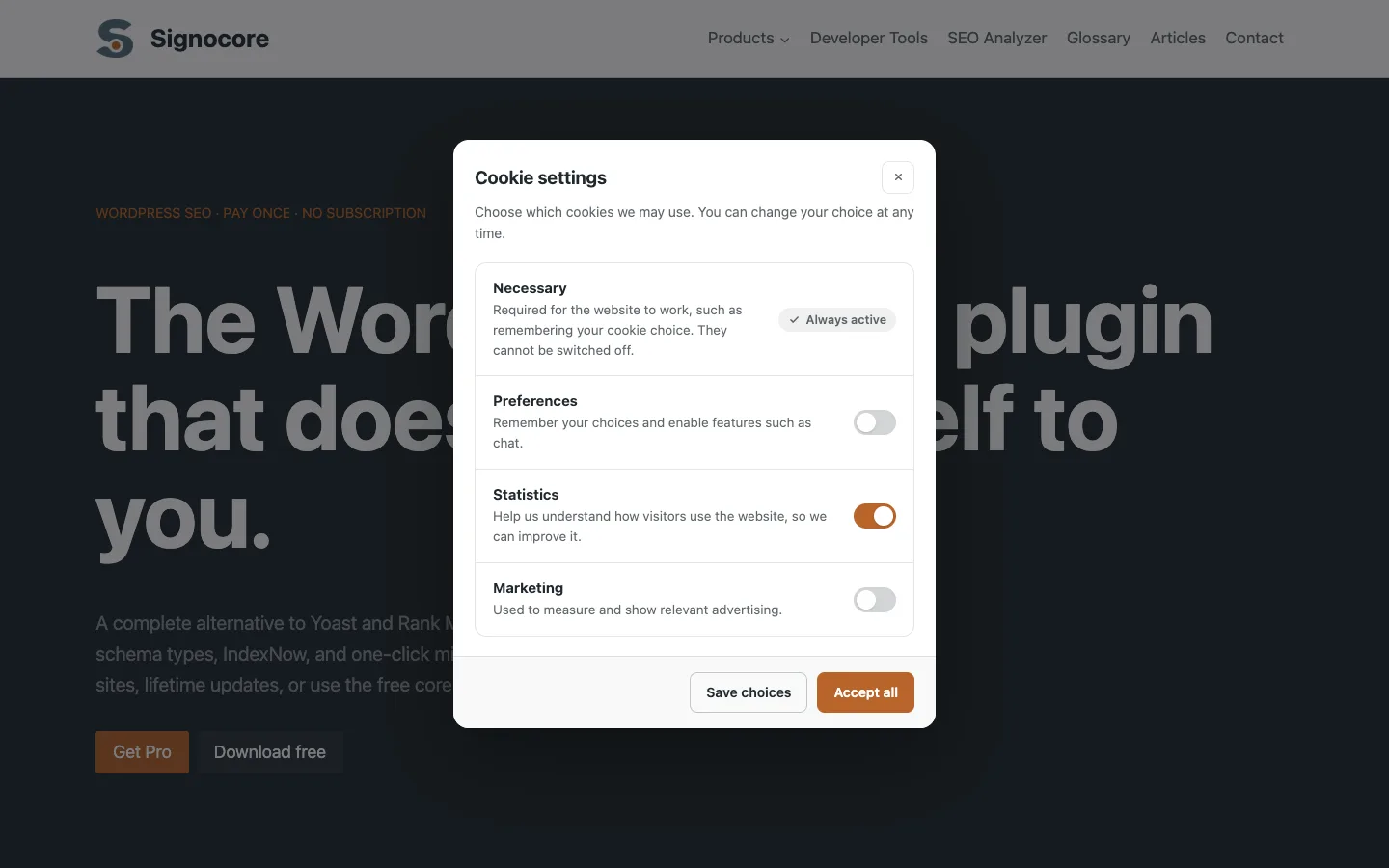
The window keeps keyboard focus inside it while it is open and returns focus to where it came from when it closes. Visitors who ask their system for reduced motion get a short fade instead of the slide-in.
Consent categories
| Category | Description visitors see | Switch |
|---|---|---|
| Necessary | Required for the website to work, such as remembering your cookie choice. They cannot be switched off. | Always active |
| Preferences | Remember your choices and enable features such as chat. | Off until the visitor agrees |
| Statistics | Help us understand how visitors use the website, so we can improve it. | Off until the visitor agrees |
| Marketing | Used to measure and show relevant advertising. | Off until the visitor agrees |
Each category grants its own Google Consent Mode signals, as described in Google Consent Mode v2. A developer can add categories or change the labels and descriptions with the signocore_consent_categories filter.
Let visitors change their choice
Besides the floating button, any link or button on your pages can open the Cookie settings window. This is how visitors change their choice when you turn off Settings button, and a footer link is a good idea either way.
- Shortcode: add
[consent-settings]to a page, a widget or a footer block. It prints a Cookie settings link. Change the text with thetextattribute, for example[consent-settings text="Manage cookies"]. - Menu link: add a custom link to a menu with
#consent-settingsas its URL. - Your own markup: give any link or button the
data-scc-openattribute, for example<button type="button" data-scc-open>Cookie settings</button>. Use a link or a button, so keyboard users can reach it too.
The shortcode prints nothing while Cookie consent is off.
Where the choice is stored
The choice is stored in the visitor's own browser, in a first-party cookie named signocore_consent, together with the time and how it was given. Nothing about it is sent to your server or to Signocore. Because the banner decides in the browser whether to show itself, it works with page caching.
The cookie is marked secure on sites served over HTTPS. On a site without HTTPS it is still saved, so the banner does not return on every page.
Match your theme
The banner uses your theme's font. Its colors come from the Kadence color palette when you run Kadence, otherwise from your theme's theme.json presets, with neutral defaults for everything else. To change a color, set the plugin's CSS custom properties in your theme's stylesheet or under Appearance → Customize → Additional CSS:
.scc-banner,
.scc-modal,
.scc-floating {
    --scc-accent: #c4782e;
    --scc-surface: #ffffff;
    --scc-radius: 8px;
}
| Property | What it colors or sets |
|---|---|
--scc-accent |
Accept all, switches that are on, and focus outlines |
--scc-on-accent |
Text on accent-colored buttons |
--scc-heading |
The banner and window titles, category names and links |
--scc-text |
The banner text |
--scc-muted |
Category descriptions and the window's introduction |
--scc-surface |
The background of the banner and the window |
--scc-line |
Dividers between categories and around the window's footer |
--scc-radius |
The corner radius of the banner and the window |
--scc-radius-control |
The corner radius of buttons |
--scc-z |
The stacking level, 99999 by default. Raise it if a sticky header or chat bubble covers the banner. |
In Bricks, the banner stays out of the builder canvas while you edit, and shows on the live page as usual.
Signocore Toolkit
Signocore Toolkit has a consent banner of its own. While Cookie consent is on in Signocore Consent, Toolkit's banner stays off, so a site never shows two banners or sends two sets of Consent Mode defaults. Turn Cookie consent off, or deactivate Signocore Consent, and Toolkit's own setting applies again.
The two plugins store their choices in different cookies, so visitors who chose in Toolkit's banner are asked once more after you switch.
Remove the plugin
Deactivating the plugin removes the banner and the Consent Mode signals from your site. Deleting it from the Plugins screen also removes its settings. The cookies already stored in visitors' browsers stay there until they expire.