
Signocore Clone copies a post, page, custom post type item, category, tag, WooCommerce product or coupon in one click. Copied content is saved as a draft, so nothing goes live until you publish it. You start a clone from the list, from the editor or for many posts at once, and a settings screen decides what the copy includes.
Install the plugin
- Download the zip file from https://download.signocore.com/signocore-clone.
- In WordPress, go to Plugins → Add New Plugin and click Upload Plugin.
- Choose the zip file and click Install Now.
- Click Activate Plugin.
Cloning works right away for posts, pages and custom post types, with no setup. Signocore Clone runs on the WordPress and PHP versions listed on the platform support page.
Clone a post or page
There are three ways to start a clone. All of them create a draft and leave the original untouched.
From the list
- Go to the list of posts, pages or any other post type, such as Posts → All Posts.
- Hover over the item you want to copy and click Clone.
The clone opens in the editor, ready to change.
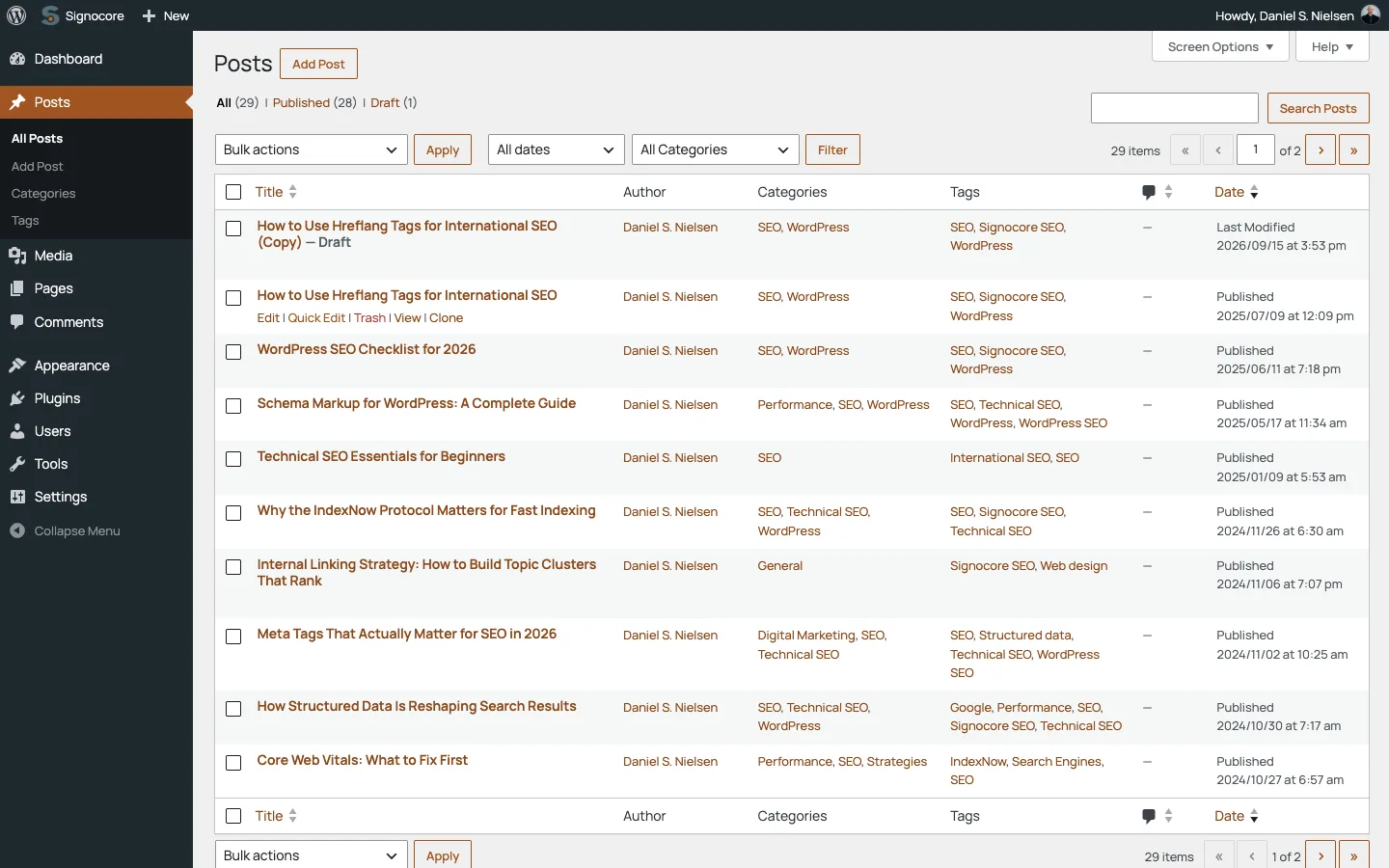
From the editor
The editor sidebar has a box named after the post type, such as Clone Post or Clone Page. It lists what the copy includes, based on your settings: Meta data, Taxonomies and Original author, each with a check mark or a dash. Click Clone to new draft to make the copy and open it.
The box appears once a post has been saved. The clone is made from the last saved version, so save your changes before you click.
Many posts at once
- In the list, select the posts you want to copy.
- Choose Clone in the Bulk actions menu and click Apply.
You stay on the list, and a notice tells you how many items were cloned as drafts and how many were skipped. One bulk action clones at most 50 posts. When you select more, the rest are left alone and the notice tells you how many, so you can select them again in a second run. The bulk action and the Clone link are not offered in the trash.
Clone a category, tag or other term
- Go to the term list, such as Posts → Categories or Posts → Tags.
- Hover over the term and click Clone.
The Clone link is on every public taxonomy, including product categories and tags, and the Post types switches do not affect it. The copy is named after the original with "(Clone)" added, such as "Shoes (Clone)". When that name is taken, the next copy becomes "Shoes (Clone 2)", then "Shoes (Clone 3)" and so on. The clone keeps the description, the parent term and, when Meta data is on, the term's custom fields. Posts are not assigned to the new term. When the copy is made, its edit screen opens.
What a cloned post includes
| Part | In the clone |
|---|---|
| Title | The original title with " (Copy)" added, such as "Pricing (Copy)". |
| Status | Always a draft. |
| Content and excerpt | Copied, together with the password, the parent page, the menu order and the comment and pingback settings. |
| Author | You. Turn on Author in the settings to keep the original author. |
| Custom fields | Copied when Meta data is on: the featured image, the page template, Advanced Custom Fields values and the data other plugins save with the post. |
| Categories, tags and other terms | Copied when Taxonomies is on. The clone gets the same terms; no new terms are created. |
| Date and URL | New. WordPress sets the date and creates the slug from the title when you publish. |
| Comments and revisions | Not copied. |
| Media | Not duplicated. The clone uses the same images and files as the original. |
A few fields are never copied because they describe the original's editing history, not its content: the editing lock, the last editor, old slugs and dates, and trash information. With Meta data on, Elementor pages keep their design, and Elementor builds fresh page styles for the clone.
Settings
Go to Settings → Signocore Clone. The screen has two cards. Click Save Changes when you are done.
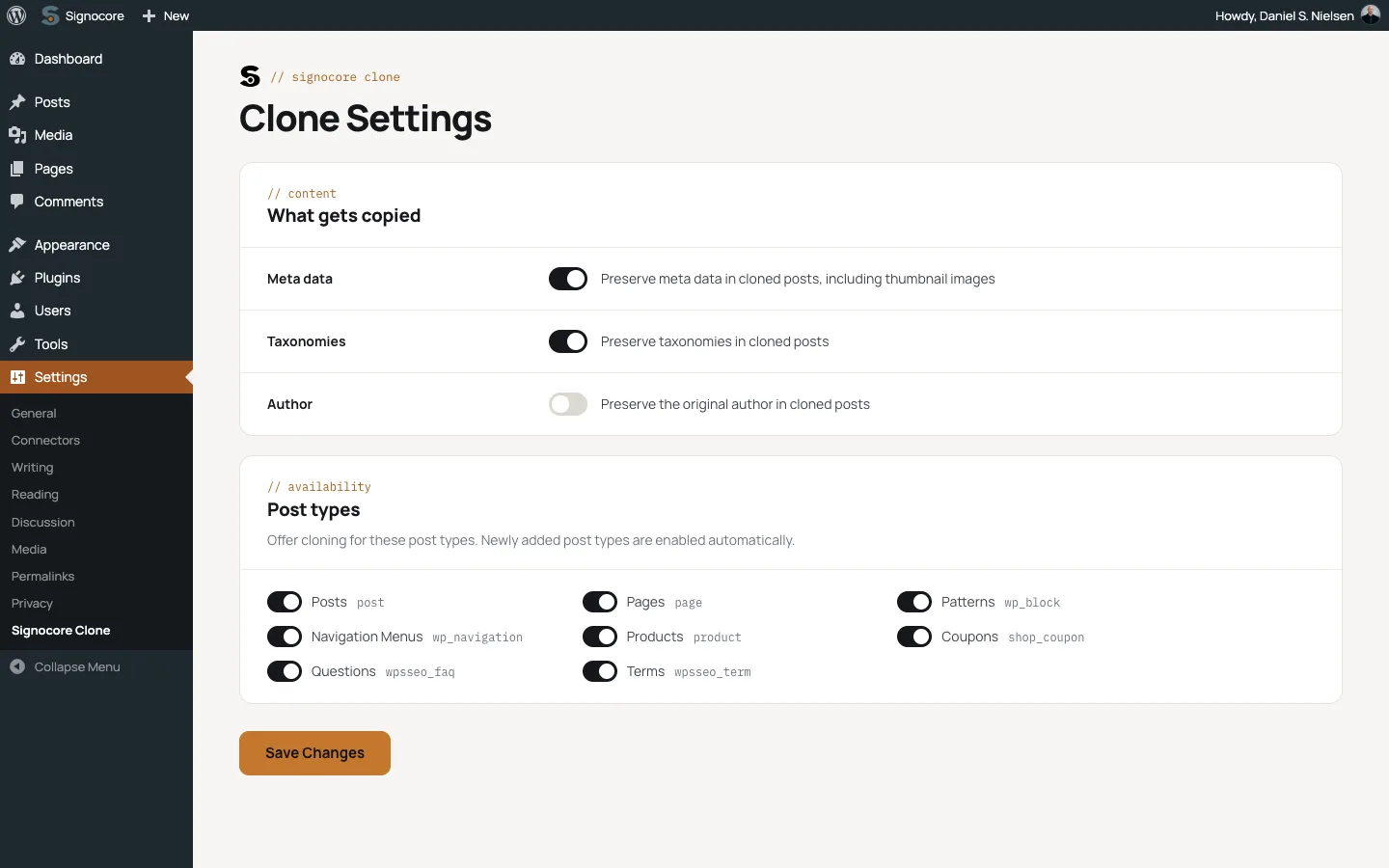
| Setting | Card | Default | What it does |
|---|---|---|---|
| Meta data | What gets copied | On | Copies the custom fields, including the featured image. It also decides whether a cloned term gets the original's custom fields. |
| Taxonomies | What gets copied | On | Assigns the clone to the same categories, tags and other terms. |
| Author | What gets copied | Off | Keeps the original author. When it is off, you become the author of the clone. |
| Post types | Post types | All on | One switch per post type. A post type that is switched off gets no Clone link, bulk action or editor box. Post types added later, for example by a new plugin, start switched on. |
Only administrators can open the settings. The settings cover posts, pages, custom post types and coupons. They do not apply to WooCommerce products, as the next section explains.
WooCommerce products and coupons
Products are cloned by WooCommerce's own duplicate feature, so the result is the same as with WooCommerce's Duplicate link: a draft named "Name (Copy)", with its variations, a new unique SKU and the sales count set to zero. Signocore Clone replaces the Duplicate link in the product list with its own Clone link, so you see one link, and it adds the bulk action and the editor box to products as well. The Meta data, Taxonomies and Author settings do not apply to products, and the editor box on a product shows no list of what is included.
To clone a product you need the same permission as for WooCommerce's own duplicate feature. By default that is administrators and shop managers.
Coupons are cloned like posts. The code gets " (Copy)" added, the usage count starts at zero and the list of customers who used the coupon is not copied. Give the clone a new code before you publish it.
Orders, refunds and subscriptions can never be cloned.
Advanced Custom Fields
Field values from Advanced Custom Fields are custom fields, so they are copied when Meta data is on. The field groups, post types, taxonomies and options pages you define in ACF itself are not offered for cloning, because a plain copy would break the links between their parts.
To leave out a single field, a developer can exclude its key. See Hooks.
Multilingual sites
With Polylang, WPML or Signocore Multilanguage, a clone keeps the language of the original. It is not added to the original's group of translations: the clone is a separate item in that language, and the original's translations stay linked to the original. This also applies to cloned terms. If the clone should become a translation, link it in your translation plugin.
Who can clone
The Clone link, the bulk action and the editor box only appear for users who can create items of that post type and edit the original. The Clone link on terms appears for users who can edit that term.
Good to know
Why don't I see the Clone link on a post type?
Check that the post type is switched on under Post types in the settings, and that your user role can create and edit that kind of content. Media files, and post types that have no screen in the admin, are never offered for cloning.
Can I change the " (Copy)" text or leave out a field?
Yes, with a few lines of code. The Hooks page has examples for changing the clone title, excluding a custom field and running your own code after each clone.
What happens when a clone fails?
You return to the page you came from, and a notice explains what went wrong, such as "We were unable to create the cloned post." In a bulk action, posts that could not be cloned are counted as skipped in the result notice.
Can I clone more than 50 posts at once?
Run the bulk action again for the rest, or ask a developer to raise the limit with the signocore_clone_bulk_limit filter described on the Hooks page.
For developers
Signocore Clone has filters for the data a clone is created with, the fields and taxonomies it skips, the post types it offers and the bulk limit, plus an action after each clone. See Hooks. More about the plugin is on the Signocore Clone product page.