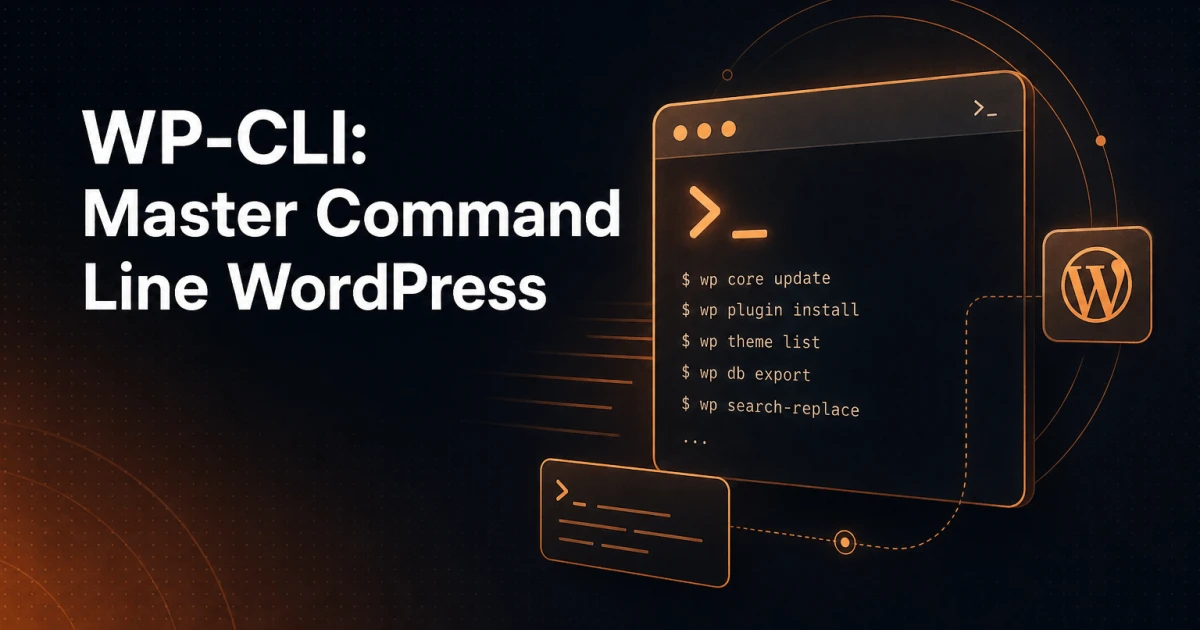
Managing WordPress through the admin dashboard is fine for a single site. For a developer handling ten sites, running deployments, or migrating databases, it is a significant bottleneck. WP-CLI removes that bottleneck entirely. Every operation you would normally click through - updating plugins, resetting passwords, running search-replace across a database, flushing caches - becomes a single command you can script, schedule, and repeat without touching a browser.
This guide is a working reference. It covers installation, the commands you will reach for daily, bulk operations across multiple sites, writing your own commands, and integrating WP-CLI into deployment pipelines. Command examples are included throughout so you can put each concept to use immediately.
What WP-CLI Is and Why It Matters
WP-CLI is the official command-line interface for WordPress. It exposes virtually every WordPress operation as a subcommand under the wp binary, from installing core to managing options, users, posts, and the database. Because it runs over SSH, it works equally well on local environments, shared hosting (where SSH is available), and managed cloud servers.
The practical impact is significant. A task like updating all plugins on a site, clearing the object cache, and flushing rewrite rules takes around 30 seconds via WP-CLI. The same task through the dashboard requires multiple page loads, confirmation dialogs, and manual cache clearing. Multiply that by 20 sites and the time savings become substantial.
WP-CLI also enables operations the dashboard simply cannot perform safely - large database search-replace migrations, bulk user imports from CSV, or generating test content programmatically. For developers who build WordPress plugins, it also provides a clean way to expose plugin functionality as CLI commands for power users and automated workflows.
Installation and Setup
Local Installation
The recommended approach on any Unix-based system (Linux, macOS) is to download the Phar file and move it to your path:
curl -O https://raw.githubusercontent.com/wp-cli/builds/gh-pages/phar/wp-cli.phar
chmod +x wp-cli.phar
sudo mv wp-cli.phar /usr/local/bin/wp
Verify the installation with wp --info. On Windows, WP-CLI can run from the regular command line via Composer or a wp.bat wrapper, from Git Bash with a small wrapper script, or inside WSL2, which many developers prefer for serious development work.
Remote Servers via SSH
WP-CLI can be installed directly on the remote server using the same process as above. Once installed, you SSH in and run commands from the WordPress root directory. Many managed hosting platforms (Kinsta, WP Engine, Cloudways) pre-install WP-CLI on their servers, so you may only need SSH access.
An alternative is using WP-CLI's built-in SSH aliasing. Define server aliases in a ~/.wp-cli/config.yml file:
@production:
  ssh: user@yourserver.com
  path: /var/www/html/yoursite

@staging:
  ssh: user@staging.yourserver.com
  path: /var/www/html/staging
With aliases configured, you can run any command against a remote site without manually SSHing in first:
wp @production plugin list
wp @staging core update
This alias system is particularly powerful when scripting multi-site deployments, because you can loop over a list of aliases and apply the same operation to every server in sequence.
Essential Commands Every Developer Should Know
Core Management
# Check and update WordPress core
wp core version
wp core check-update
wp core update

# Download WordPress without installing
wp core download --version=6.5 --locale=en_US
Plugins and Themes
# List all plugins with status
wp plugin list

# Install, activate, deactivate, delete
wp plugin install woocommerce --activate
wp plugin deactivate contact-form-7
wp plugin delete akismet

# Update a specific plugin or all plugins
wp plugin update woocommerce
wp plugin update --all

# Same pattern applies to themes
wp theme list
wp theme install twentytwentyfive --activate
wp theme update --all
User Management
# Create a new admin user
wp user create devadmin dev@example.com --role=administrator --user_pass=SecurePass123

# Reset a password without email
wp user update 1 --user_pass=NewPassword123

# List users by role
wp user list --role=editor --fields=ID,user_login,user_email
Database Operations
# Export and import the database
wp db export backup.sql
wp db import backup.sql

# Run a raw SQL query
wp db query "SELECT option_name, option_value FROM wp_options WHERE option_name = 'siteurl';"

# Check database table sizes
wp db size --tables
Search-Replace
The search-replace command is one of the most frequently used tools in migration workflows. It handles serialized data correctly - something a raw SQL find-and-replace will silently corrupt:
# Dry run first to see what would change
wp search-replace 'http://oldsite.com' 'https://newsite.com' --dry-run

# Execute the replacement
wp search-replace 'http://oldsite.com' 'https://newsite.com'

# Restrict to specific tables
wp search-replace 'old-domain.com' 'new-domain.com' wp_options wp_posts wp_postmeta
Always run with --dry-run first. The output tells you exactly how many replacements would occur in each table, giving you a sanity check before committing the change.
Bulk Operations Across Multiple Sites
Managing a fleet of WordPress sites is where WP-CLI's real leverage appears. A simple Bash loop can apply any command to every site you manage:
#!/bin/bash
SITES=("/var/www/site1" "/var/www/site2" "/var/www/site3")

for SITE in "${SITES[@]}"; do
  echo "Processing $SITE"
  wp --path="$SITE" plugin update --all
  wp --path="$SITE" core update
  wp --path="$SITE" cache flush
done
Combined with the SSH alias system described earlier, the same loop can operate across remote servers. Pair this with a cron job and you have automated maintenance running on a schedule without manual intervention.
For database migrations between environments, the typical workflow is export, transfer, import, then search-replace:
wp @production db export - | ssh user@staging.server "wp --path=/var/www/staging db import -"
wp @staging search-replace 'https://production.com' 'https://staging.com' --skip-columns=guid
The --skip-columns=guid flag is important - GUIDs should not be changed during migration, as feed readers use them to recognise items they have already shown.
Writing Custom WP-CLI Commands for Your Plugins
If you build WordPress plugins, exposing key functionality as WP-CLI commands is a mark of developer-grade quality. It allows plugin users to automate tasks, integrate with deployment scripts, and operate without the dashboard.
Registering a command requires hooking into WP_CLI::add_command() after WP-CLI has loaded:
if ( defined( 'WP_CLI' ) && WP_CLI ) {
    WP_CLI::add_command( 'myplugin sync', 'MyPlugin_CLI_Sync' );
}
The command class itself follows a straightforward pattern:
class MyPlugin_CLI_Sync {
    /**
     * Sync all records from the external API.
     *
     * ## OPTIONS
     *
     * [--dry-run]
     * : Preview changes without writing to the database.
     *
     * ## EXAMPLES
     *
     *     wp myplugin sync --dry-run
     *
     * @when after_wp_load
     */
    public function __invoke( $args, $assoc_args ) {
        $dry_run = WP_CLI\Utils\get_flag_value( $assoc_args, 'dry-run', false );

        WP_CLI::log( 'Starting sync...' );

        // Your logic here

        WP_CLI::success( $dry_run ? 'Dry run complete.' : 'Sync complete.' );
    }
}
The docblock comment is not decorative - WP-CLI parses it to generate help text when a user runs wp myplugin sync --help. Writing thorough docblocks is the difference between a command that feels professional and one that feels bolted on.
A useful test for whether a feature deserves a command: if anyone would ever want to run it from a deployment script or a cron job, it does. Bulk regeneration, cache warming, imports and data repairs all qualify. A settings screen that someone changes once a year rarely does.
Scripting with WP-CLI: Automating Repetitive Tasks
WP-CLI's output formats make it easy to compose commands into scripts. The --format=json or --format=csv flags on list commands let you pipe data into other tools:
# Get all inactive plugins as JSON
wp plugin list --status=inactive --format=json

# Delete all inactive plugins in one command
wp plugin delete $(wp plugin list --status=inactive --field=name)
A practical deployment script might look like this:
#!/bin/bash
set -e

WP="wp --path=/var/www/html"

echo "Putting site into maintenance mode..."
$WP maintenance-mode activate

echo "Updating core and plugins..."
$WP core update
$WP plugin update --all

echo "Running database migrations..."
$WP core update-db

echo "Flushing caches..."
$WP cache flush
$WP rewrite flush

echo "Deactivating maintenance mode..."
$WP maintenance-mode deactivate

echo "Deployment complete."
The set -e at the top is critical - it causes the script to exit immediately if any command fails, preventing the site from being left in a broken intermediate state.
Integration with CI/CD Pipelines
WP-CLI integrates naturally into GitHub Actions, GitLab CI, and similar pipelines. A typical pattern installs WP-CLI in the pipeline runner, then uses it to deploy code and run post-deployment tasks against a remote server via SSH:
# GitHub Actions excerpt
- name: Install WP-CLI
  run: |
    curl -O https://raw.githubusercontent.com/wp-cli/builds/gh-pages/phar/wp-cli.phar
    chmod +x wp-cli.phar
    sudo mv wp-cli.phar /usr/local/bin/wp

- name: Deploy and update
  run: |
    ssh ${{ secrets.SSH_USER }}@${{ secrets.SSH_HOST }} "
      cd /var/www/html &&
      wp plugin update --all &&
      wp core update-db &&
      wp cache flush
    "
For testing environments, WP-CLI can scaffold test data, create users with specific roles, and set options - all as part of the pipeline setup phase. This makes it straightforward to spin up a reproducible WordPress environment for automated testing without manual configuration steps.
If your pipeline also involves SEO validation - checking that meta tags and structured data are correct after a deployment - the SEO Analyzer can serve as a post-deployment audit step, while tools like the Sitemap Validator confirm that the sitemap generated after core updates remains valid.
Common Gotchas
Memory Limits
WP-CLI runs PHP in CLI mode, which often has a separate memory_limit from the web server configuration. If commands like plugin update --all fail silently or with memory errors, set the limit explicitly:
php -d memory_limit=512M $(which wp) plugin update --allAlternatively, add a WP_CLI_PHP_ARGS environment variable to your shell profile: export WP_CLI_PHP_ARGS='-d memory_limit=512M'.
Timeouts on Large Operations
Search-replace on a large database or importing a multi-gigabyte SQL file can exceed execution time limits. Run long operations inside a screen or tmux session so they survive SSH disconnections. For very large search-replace operations, consider restricting the run to specific tables or using --skip-tables and --skip-columns to reduce the amount of data processed in one pass.
Multisite Context
On WordPress Multisite, most commands default to the main site when no --url is given. To target a specific sub-site, pass the --url flag:
wp --url=subsite.example.com plugin list
wp --url=example.com/subsite option get blogname
Network-wide operations use --network:
wp plugin activate myplugin --networkForgetting the --url flag on multisite is a frequent source of confusion - commands appear to succeed but affect the wrong site, or return unexpected results because they are reading options from the wrong blog ID.
Running as the Wrong User
File ownership issues arise when WP-CLI is run as root but WordPress files are owned by a different user. Always run WP-CLI as the user that owns the WordPress files, or use sudo -u www-data wp ... to specify the correct user explicitly.
WP-CLI as a Professional Standard
Developers who manage WordPress at scale without WP-CLI are doing the work twice - once in the browser and once mentally tracking what they changed. WP-CLI turns WordPress administration into a programmable, auditable, repeatable process. Commands can be logged, versioned in scripts alongside application code, and integrated into the same deployment tooling used for every other part of a project.
The investment in learning WP-CLI pays back quickly. A few hours spent building solid deployment scripts and understanding the command surface translates into hours saved on every subsequent project - and eliminates an entire category of human error that comes from clicking through dashboards under pressure. For developers building plugins with WordPress plugin toolkits or managing client sites at agency scale, it is not optional tooling - it is infrastructure.