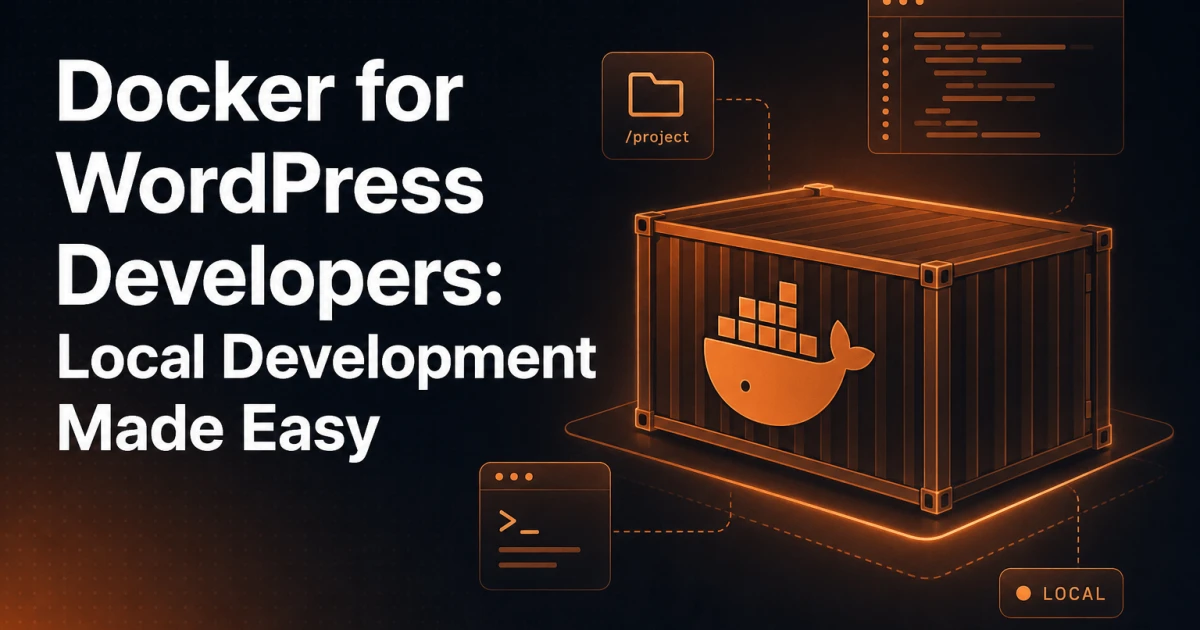
Every WordPress developer has experienced the moment: code that runs perfectly on a local machine breaks the instant it hits a staging server. PHP version mismatch. A missing extension. A different MySQL collation. The fix takes hours, the cause takes minutes to explain, and XAMPP or MAMP offers no good answer to why it happened. Docker does - and once you understand how, you will not go back.
Why Docker Solves the "Works on My Machine" Problem
The fundamental issue with traditional local stacks like XAMPP, MAMP, or Laragon is that they run software directly on your operating system. Your local PHP version, your MySQL configuration, your server headers - none of these are guaranteed to match what runs in production. Every developer on a team can have a slightly different setup, and small differences compound into real bugs.
Docker takes a different approach: instead of installing software on your machine, you define an environment in a file, and Docker runs that environment inside isolated containers. The container includes the exact PHP version, the exact server configuration, and the exact extensions your project needs. That definition travels with your codebase. A developer joining the team runs one command and has an identical environment within minutes - regardless of whether they are on macOS, Windows, or Linux.
This is not a theoretical benefit. It is the practical elimination of an entire class of bugs.
Core Docker Concepts Without the Enterprise Jargon
Before writing any configuration, four concepts are worth understanding clearly.
Images
An image is a blueprint. The official wordpress image on Docker Hub contains a pre-configured Apache server, PHP, and the WordPress files. The mysql:8.0 image contains a MySQL server. Images are read-only - you do not modify them directly. Instead, you run them.
Containers
A container is a running instance of an image. When you start your local environment, Docker spins up several containers simultaneously: one for WordPress/PHP, one for MySQL, one for phpMyAdmin. Each is isolated, but they can communicate with each other over a shared network. If you stop a container and delete it, the image is untouched and you can create a fresh container from it instantly.
Volumes
Containers are ephemeral by design. If you delete a MySQL container, you lose your database - unless you use a volume. A volume is a persistent storage location that exists outside the container lifecycle. You map a directory on your host machine (or a named Docker volume) to a path inside the container. Your database data survives container restarts, rebuilds, and deletions.
Networks
By default, Docker containers cannot see each other. Docker Compose automatically creates a private network for all services defined in a single docker-compose.yml file. Within that network, containers reference each other by their service name. WordPress connects to MySQL not via localhost, but via the hostname db - the name you give the database service.
Setting Up WordPress with Docker Compose
Docker Compose is the tool that orchestrates multiple containers together using a single YAML file. For a WordPress development environment, you need at minimum: a web server with PHP, a MySQL database, and optionally phpMyAdmin for database management. The configuration below uses the official WordPress image (which bundles Apache and PHP-FPM internally) alongside MySQL 8.0 and phpMyAdmin.
Create a new directory for your project and place the following file at its root as docker-compose.yml.
version: "3.9"

services:

  # ─────────────────────────────────────────────
  # WordPress + Apache + PHP
  # ─────────────────────────────────────────────
  wordpress:
    image: wordpress:6.5-php8.2-apache
    container_name: my_wordpress
    restart: unless-stopped
    ports:
      - "8080:80"           # Access at http://localhost:8080
    environment:
      WORDPRESS_DB_HOST: db:3306
      WORDPRESS_DB_USER: wp_user
      WORDPRESS_DB_PASSWORD: wp_password
      WORDPRESS_DB_NAME: wp_database
      WORDPRESS_DEBUG: "1"  # Enable WP_DEBUG in development
    volumes:
      # Sync your local wp-content with the container
      - ./wp-content:/var/www/html/wp-content
      # Optional: mount a custom php.ini
      - ./config/php.ini:/usr/local/etc/php/conf.d/custom.ini
    depends_on:
      db:
        condition: service_healthy
    networks:
      - wp_network

  # ─────────────────────────────────────────────
  # MySQL 8.0 Database
  # ─────────────────────────────────────────────
  db:
    image: mysql:8.0
    container_name: my_mysql
    restart: unless-stopped
    environment:
      MYSQL_DATABASE: wp_database
      MYSQL_USER: wp_user
      MYSQL_PASSWORD: wp_password
      MYSQL_ROOT_PASSWORD: root_password
    volumes:
      # Named volume keeps data between container restarts
      - db_data:/var/lib/mysql
    healthcheck:
      test: ["CMD", "mysqladmin", "ping", "-h", "localhost"]
      interval: 10s
      timeout: 5s
      retries: 5
    networks:
      - wp_network

  # ─────────────────────────────────────────────
  # phpMyAdmin — database GUI
  # ─────────────────────────────────────────────
  phpmyadmin:
    image: phpmyadmin:latest
    container_name: my_phpmyadmin
    restart: unless-stopped
    ports:
      - "8081:80"           # Access at http://localhost:8081
    environment:
      PMA_HOST: db
      PMA_USER: wp_user
      PMA_PASSWORD: wp_password
    depends_on:
      - db
    networks:
      - wp_network

# ─────────────────────────────────────────────
# Named volumes (persist beyond container lifecycle)
# ─────────────────────────────────────────────
volumes:
  db_data:

# ─────────────────────────────────────────────
# Shared network for inter-container communication
# ─────────────────────────────────────────────
networks:
  wp_network:
    driver: bridge
With this file in place, start everything with a single command from the project root:
docker compose up -d
The -d flag runs containers in detached mode (background). On first run, Docker pulls the required images - this takes a few minutes. Subsequent starts are near-instant. Visit http://localhost:8080 to run the WordPress installer, and http://localhost:8081 for phpMyAdmin.
To stop everything without deleting data:
docker compose down
To stop and remove all containers, networks, and the named volume (destructive - deletes database):
docker compose down -v
Understanding the Configuration Line by Line
The WordPress service
The image tag wordpress:6.5-php8.2-apache pins both the WordPress version and the PHP version. Using wordpress:latest works but introduces unpredictable updates. For development environments that mirror production, always pin the PHP version to whatever your server runs. The WORDPRESS_DEBUG: "1" environment variable sets WP_DEBUG to true inside wp-config.php automatically - no manual file editing required.
The volume mount for wp-content
The line - ./wp-content:/var/www/html/wp-content is the most important mount for active development. It maps your local wp-content folder directly into the container. Any theme or plugin file you edit in your code editor is immediately reflected inside the running container - no upload step, no sync delay. This is where your actual development work lives.
The healthcheck on the database
MySQL takes a few seconds to initialize. Without the healthcheck block and the condition: service_healthy dependency on the WordPress service, WordPress might attempt to connect before MySQL is ready, resulting in a connection error on first boot. The healthcheck polls MySQL every 10 seconds and only marks the service healthy once it responds successfully.
The named volume for database data
db_data:/var/lib/mysql maps a Docker-managed named volume to the MySQL data directory. Unlike bind mounts (which map to a specific folder on your host), named volumes are managed entirely by Docker and stored in Docker's internal storage area. They persist across docker compose down commands and are the correct approach for database storage on all platforms.
Persisting Data Correctly
A common mistake is assuming that stopping containers loses data. It does not - as long as volumes are configured. The distinction to understand is between the two volume types used above:
Bind mounts (
./wp-content:/var/www/html/wp-content) - link a specific directory on your host filesystem to a path in the container. Ideal for source code you want to edit directly. Changes on either side are immediately visible on the other.Named volumes (
db_data:/var/lib/mysql) - Docker manages the storage location. Ideal for database files, cache data, or anything you do not need to inspect directly. More performant on macOS and Windows than bind mounts for large file trees.
For the wp-content directory, a bind mount is the right choice because you are actively developing files there. For the database, a named volume is correct because you need persistence without direct file access.
Matching Production: Environment Parity
The real power of Docker for WordPress development is not convenience - it is environment parity. When your production server runs PHP 8.1 with specific extensions and MySQL 8.0 with a particular character set, you can replicate that exactly in your docker-compose.yml. This eliminates the most common source of deployment surprises.
If you use a custom php.ini on your server, mount an equivalent file locally via the ./config/php.ini volume. A minimal custom ini for WordPress development might look like this:
upload_max_filesize = 64M
post_max_size = 64M
max_execution_time = 300
memory_limit = 256M
display_errors = On
error_reporting = E_ALL
For teams, the docker-compose.yml lives in version control alongside the codebase. Every developer, every CI pipeline, and every staging environment runs from the same definition. This is what makes Docker genuinely different from shared hosting instructions or a README that says "install PHP 8.x and enable these extensions."
Once your WordPress environment is stable and consistent, running an audit against the live site becomes straightforward. A free tool like the SEO Analyzer can surface technical issues - broken links, missing schema, performance gaps - that you can reproduce and fix in your local Docker environment before deploying.
Common Gotchas and How to Handle Them
File permissions on Linux
The WordPress container runs Apache as the www-data user (UID 33). On Linux, bind-mounted files owned by your local user may be unwritable by the container process. WordPress will fail to create uploads or install plugins. The fix is to either set the volume ownership explicitly or run a one-time permission command against the container:
docker compose exec wordpress chown -R www-data:www-data /var/www/html/wp-content
On macOS and Windows, Docker Desktop handles the permission translation automatically, so this is primarily a Linux host concern.
Slow volume mounting on macOS
Bind mounts on macOS have historically been slow because Docker Desktop runs inside a Linux VM, and file sync between macOS and the VM adds overhead. For large WordPress installations with many files, this can make the site feel sluggish locally. The solution is to use Docker Desktop's VirtioFS file sharing mode (enabled in Docker Desktop settings under "General"), which provides significantly better I/O performance than the legacy osxfs driver. Alternatively, keep only wp-content/themes/your-theme and wp-content/plugins/your-plugin as bind mounts rather than the entire wp-content directory.
Connecting to the database
Inside the WordPress container, the database host is not localhost or 127.0.0.1. It is the service name defined in docker-compose.yml - in this case, db. This is a common source of confusion when manually editing wp-config.php or connecting with a database tool. In phpMyAdmin or TablePlus running outside Docker, connect via 127.0.0.1 on port 3306 - but you will need to expose that port in the db service by adding ports: - "3306:3306". Avoid exposing the database port in shared or production environments.
WP-CLI inside the container
WP-CLI is not included in the standard WordPress image, but you can run it via a separate container that shares the same volume:
docker run --rm \
  --volumes-from my_wordpress \
  --network container:my_wordpress \
  wordpress:cli \
  wp plugin list
Or add it as a dedicated service in your Compose file for convenience.
Extending the Setup for Real Projects
The configuration above is a solid foundation. Real projects often extend it with additional services: Redis for object caching, Mailhog for intercepting outgoing email during development, or an Nginx reverse proxy to handle multiple local projects on clean hostnames instead of port numbers. Each addition follows the same pattern - a new service block in docker-compose.yml, connected to the shared network.
For developers managing multiple WordPress projects, the same compose file works as a template: copy it into a new project folder, change the ports if another stack is already running, and you have a fresh, isolated site in minutes. To bring a production site into Docker, copy the uploads folder, export the database with WP-CLI's wp db export, import it into the container, and run wp search-replace to switch the URLs.
The broader point is that Docker does not lock you into a specific workflow. It gives you a declarative, portable, version-controlled description of your environment. That description is the artifact that eliminates environment drift - and for WordPress developers tired of debugging server differences instead of building products, that is exactly what matters.