A working WordPress site can break in minutes. One plugin update, one new installation, and suddenly the checkout page throws a fatal error, the admin menu disappears, or a JavaScript-dependent feature silently stops working. Plugin conflicts are among the most common - and most frustrating - problems WordPress developers encounter, largely because the symptoms rarely point directly at the cause.
Debugging them is not a matter of intuition. It is a matter of method. The developers who resolve conflicts quickly are not the ones with the most experience - they are the ones who follow a systematic process every single time.
Why Plugin Conflicts Happen
WordPress is a shared execution environment. Every active plugin loads its own PHP classes, functions, hooks, and assets into the same global runtime. When two plugins make incompatible assumptions about that shared space, a conflict emerges.
The four most common conflict types each have distinct signatures:
Namespace and function collisions: Two plugins define a function or class with the same name. PHP is unambiguous about this - a fatal error fires immediately. This is less common in modern plugins that use PHP namespaces, but older plugins and poorly maintained code still define global functions like
get_template_data()orformat_price()without any namespace protection. The misconceptions around PHP and WordPress plugins often include the assumption that namespacing is optional - it is not, on any serious project.Hook priority battles: WordPress's hook system -
add_actionandadd_filter- runs callbacks in priority order. When two plugins both hook intothe_contentorwoocommerce_before_checkout_formand each expects to run last, the output of one corrupts the input of the other. The result can be mangled HTML, duplicate content, or silently missing output.JavaScript conflicts: Two plugins loading different versions of jQuery, a plugin that calls
$without a noConflict wrapper, or a script that depends on a DOM element another plugin removes - these produce errors that only appear in the browser console and can be invisible to PHP-focused debugging.CSS conflicts: Specificity wars between stylesheets, one plugin overriding another's layout rules, or a plugin loading a CSS reset that destroys a theme's typography. These rarely cause fatal errors but can make a site look completely broken to end users.
The Only Reliable Method: Deactivate All, Reactivate One by One
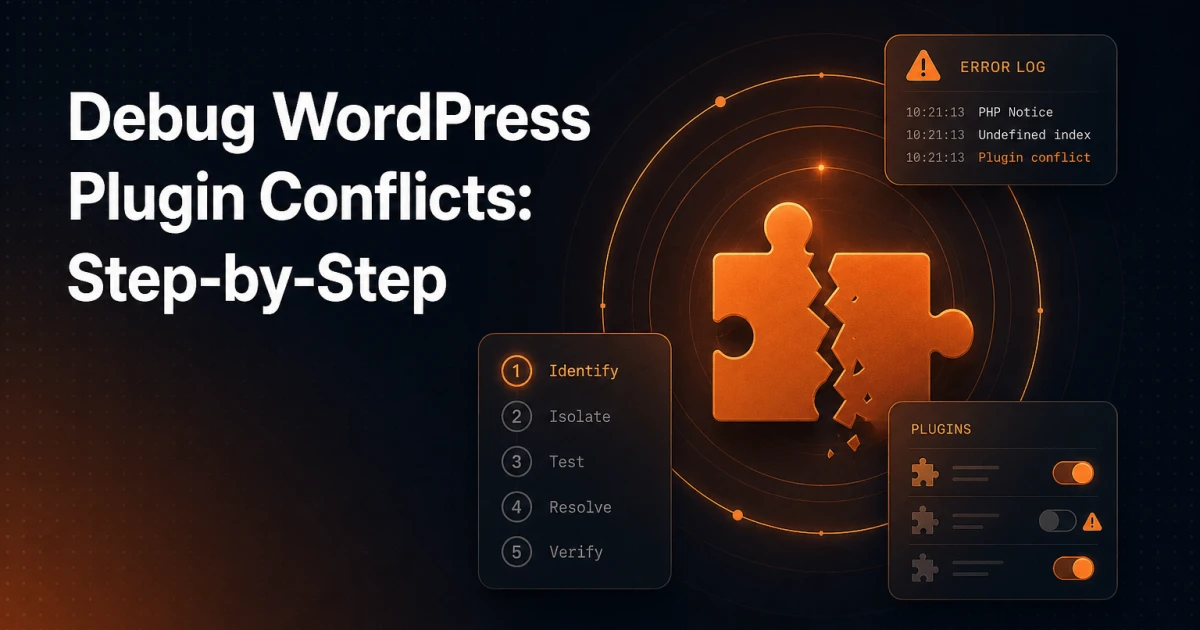
No amount of reading plugin changelogs or searching forums is a substitute for binary isolation. The process is straightforward and non-negotiable:
Deactivate all plugins at once (via the plugins list, bulk action).
Confirm whether the problem disappears. If it does, a plugin is responsible. If it does not, the conflict may be theme-related - covered later in this article.
Reactivate plugins one at a time, checking after each activation whether the problem reappears.
When the problem returns, the last plugin you activated is either the culprit or it conflicts with one already active.
To confirm a two-plugin conflict, deactivate all others and test only the two suspected plugins together.
This binary search approach is the only method that produces a definitive answer. Guessing based on plugin names, update dates, or reviews wastes time and often points at the wrong plugin entirely.
Debugging on a Live Site
Bulk-deactivating plugins on a production site is not always acceptable. An e-commerce store mid-day, a membership site with active users, or a client site with strict uptime requirements cannot absorb the disruption of a deactivation sweep.
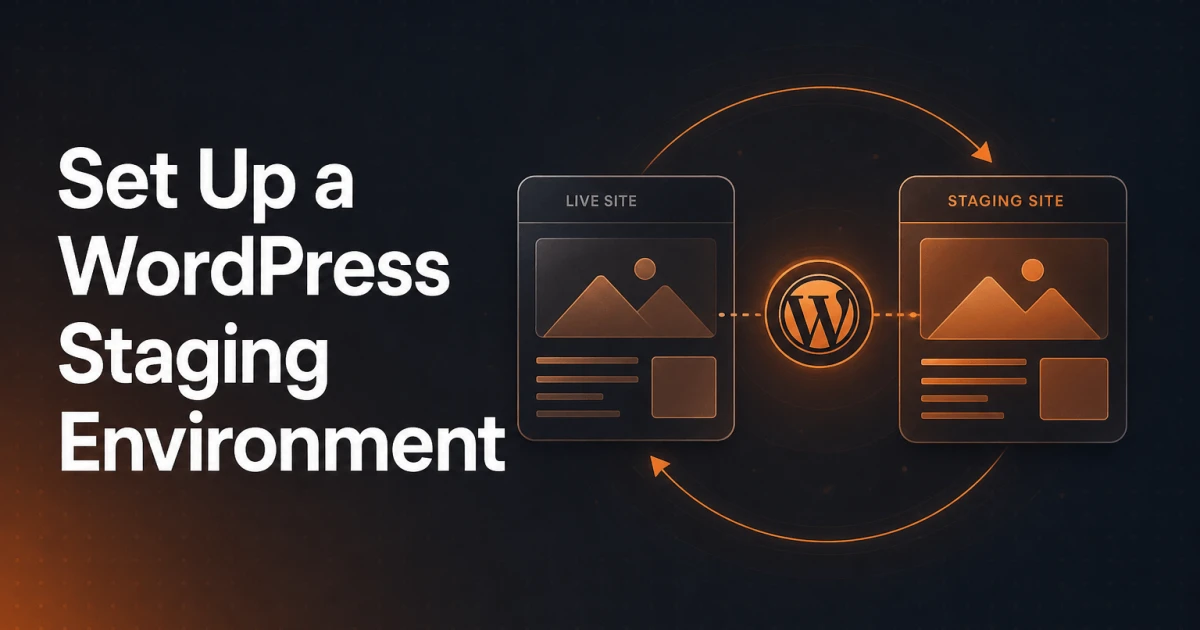
The correct approach is to reproduce the conflict in an isolated environment first. A staging site that mirrors production - same plugins, same theme, same database content - lets you run the full deactivation cycle without risk.
Cloning a WordPress site accurately is often harder than it sounds. Database tables, file paths, serialized data, and media assets all need to travel together. Use your host's staging tool, or copy the files and the database yourself and run a serialization-safe URL replacement such as WP-CLI's wp search-replace, so the conflict you debug in staging is the same conflict that exists in production, not a subtly different configuration.
If staging is not an option and you must debug live, the WordPress Health Check plugin offers a "Troubleshooting Mode" that deactivates plugins only for your logged-in session, leaving the site fully functional for other visitors. This is a reasonable fallback, though staging remains preferable for any serious investigation.
Browser DevTools: Finding JavaScript and CSS Conflicts
PHP errors crash pages. JavaScript errors break features silently. The browser console is where JavaScript conflicts live, and ignoring it means missing half the conflict surface area.
Open DevTools (F12 in Chrome or Firefox) and go straight to the Console tab before doing anything else. Look for:
Uncaught TypeError or ReferenceError: These indicate a script trying to call a function or access a variable that does not exist - often because a dependency did not load, or because two plugins loaded conflicting versions of the same library.
Script loading errors in the Network tab: A 404 on a
.jsfile means a plugin is referencing an asset that does not exist - commonly caused by a plugin registering a script with a path that breaks after a move or URL change.jQuery noConflict issues: If you see
$ is not a function, a plugin is calling jQuery's$shorthand without wrapping it in a(function($){ ... })(jQuery);closure. This is a code quality problem, not a configuration problem.
For CSS conflicts, the Elements panel (or Inspector in Firefox) shows the computed styles and the full cascade for any element. When a layout breaks, select the affected element and look for overridden rules - shown as strikethrough text in the Styles pane. The source file shown next to each rule tells you exactly which plugin or theme stylesheet is responsible.
Query Monitor: PHP Errors, Slow Queries, and Hook Tracing
Query Monitor is the most useful debugging plugin in the WordPress ecosystem. Install it, and it adds a persistent admin bar panel that surfaces information no other tool exposes as cleanly.
For plugin conflict debugging, the most relevant panels are:
PHP Errors: Every notice, warning, and fatal error generated during the page load appears here with a full stack trace and the file and line responsible. This is often faster than reading raw error logs.
Hooks & Actions: This panel lists every hook fired during the request, along with every callback attached to it, the plugin or theme that registered it, and its priority. When you suspect a hook priority battle, this is where you confirm it. You can see at a glance if two plugins are both hooked into
wp_headat priority 10 and producing conflicting output.Database Queries: Slow or duplicate queries caused by plugin interactions show up here. A conflict does not have to produce a visual error - it can manifest as a page that takes eight seconds to load because two plugins are each running unoptimized queries on every request.
PHP Error Logs: Where to Find Them and What to Look For
Query Monitor requires WordPress to load successfully. When a conflict produces a fatal error that prevents the page from rendering at all, you need the raw PHP error log.
First, make sure error logging is enabled. In wp-config.php, set:
define( 'WP_DEBUG', true );
define( 'WP_DEBUG_LOG', true );
define( 'WP_DEBUG_DISPLAY', false );
Setting WP_DEBUG_DISPLAY to false keeps errors out of the browser output (important on production) while writing them to /wp-content/debug.log. Access this file via FTP, SSH, or your host's file manager.
When reading the log, focus on the first error in a sequence - subsequent errors are often cascading consequences of the first. Look for the file path in the stack trace. A path inside /wp-content/plugins/plugin-name/ immediately identifies the plugin responsible. A path inside /wp-content/themes/theme-name/ suggests a theme issue rather than a plugin conflict.
Common patterns worth recognizing:
Fatal error: Cannot redeclare function_name(): A direct namespace collision. Two plugins defining the same function name.
Call to undefined function: A plugin calling a function from another plugin that is not active, or a function that was removed in a newer version of a dependency.
Maximum execution time exceeded: Often caused by an infinite loop triggered when two plugins hook into the same filter and each modifies the value the other is watching.
When the Problem Is the Theme, Not a Plugin
After deactivating all plugins, if the problem persists, the theme is the primary suspect. Switch to a default WordPress theme (Twenty Twenty-Four or similar) and test again. If the problem disappears, your active theme is either the sole cause or a contributing factor in a theme-plugin conflict.
Theme-plugin conflicts follow the same debugging logic as plugin-plugin conflicts, but the surface area is different. Themes can:
Override template files that plugins depend on (particularly WooCommerce templates).
Load scripts or styles that break plugin-registered assets.
Use
functions.phpto hook into actions in ways that interfere with plugin behavior.
A child theme is always preferable to modifying a parent theme directly - not just for update safety, but because it isolates your customizations and makes it much easier to determine whether a problem originates in the parent theme or your modifications.
Reporting a Conflict Bug Effectively
Once you have isolated the conflict to a specific plugin pair or plugin-theme combination, reporting it well matters - both for getting a fix faster and for contributing useful information to the plugin's support community.
An effective bug report includes:
Exact reproduction steps: What you did, in what order, to trigger the problem. "It breaks when I activate Plugin B while Plugin A is active and navigate to the checkout page" is actionable. "It just stopped working" is not.
Environment details: WordPress version, PHP version, the conflicting plugin names and their version numbers, and your active theme name and version. Include whether the problem appears on a clean installation with only the two conflicting plugins active - this rules out a three-way conflict and simplifies the developer's reproduction effort.
The exact error message: Copy the full error from the PHP log or browser console, including the stack trace. Do not paraphrase it.
What you have already tried: If you confirmed the conflict by testing the two plugins in isolation, say so. This saves the developer from asking you to do what you have already done.
Developers respond faster and more helpfully to reports that demonstrate the reporter has already done systematic isolation work. A report that says "I deactivated all other plugins, confirmed the error occurs with only Plugin A and Plugin B active on WordPress 6.5 / PHP 8.2, and the error log shows a fatal on line 347 of plugin-b/includes/class-loader.php" is immediately actionable.
Systematic Debugging as a Professional Habit
Plugin conflicts are not edge cases - they are a predictable consequence of WordPress's open plugin architecture. Every site with more than a handful of active plugins will encounter one eventually. The difference between a developer who resolves conflicts in twenty minutes and one who spends half a day on them is almost entirely process: staging environments, error logging enabled before problems occur, Query Monitor installed, and the discipline to follow the deactivation cycle rather than hunting for shortcuts.
Building these habits - and the tooling to support them, including a reliable cloning workflow and a staging environment that actually mirrors production - means the next conflict becomes a minor interruption rather than a crisis. For a deeper look at how plugin architecture affects WordPress performance and reliability more broadly, the Signocore WordPress plugins page covers the principles behind keeping plugin footprints lean and conflict-resistant by design.