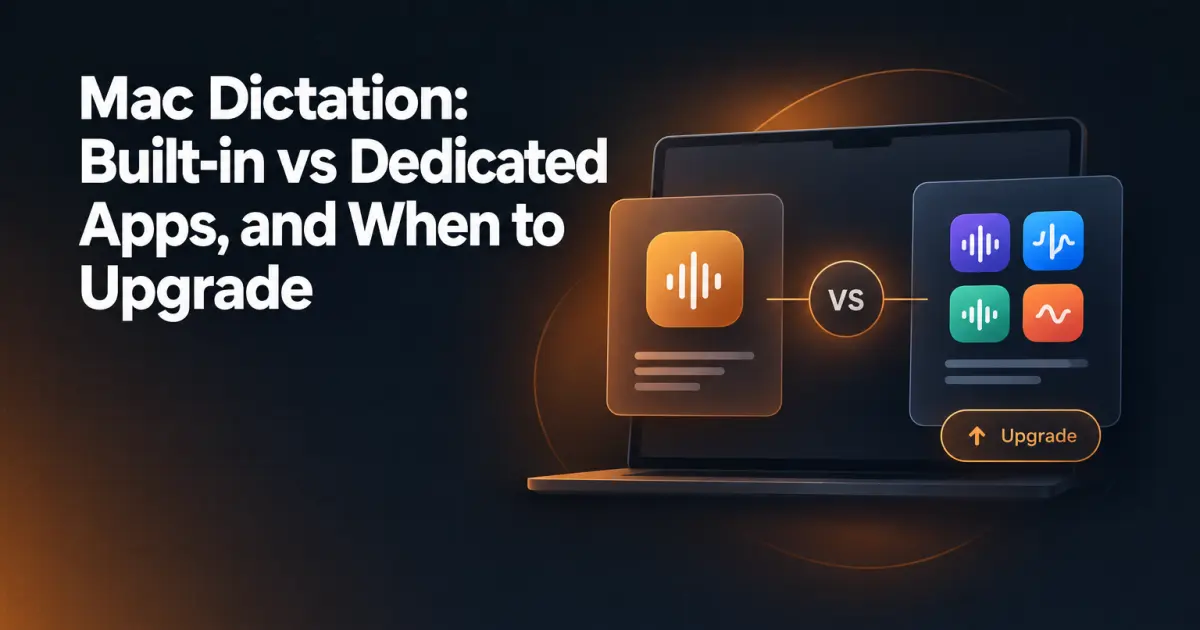
Every Mac ships with dictation built in. Press a key, speak, and words appear. For a quick reply in Messages or a sentence dropped into a note, it is genuinely fine, and it costs nothing. So the interesting question is not whether built-in dictation works. It does. The question is where it stops scaling once you move from dictating the occasional sentence to using your voice as a serious input method for real writing, and what you actually gain if you decide to switch to a dedicated app.
This comparison looks at both sides honestly: what Apple's built-in dictation does well, where it creates daily friction for heavy users, what modern Whisper-class dictation apps change, and how to decide whether an upgrade is worth it for the way you work.
What Built-in macOS Dictation Gets Right
Credit where it is due. Built-in dictation is one of those macOS features that quietly improved over the years, and for a large group of users it is all they will ever need.
It is free and already there. No download, no account, no payment. Enable it in System Settings and it works within a minute. For anyone unsure whether voice input suits them at all, this is the obvious place to start.
It works system-wide. Any standard text field accepts dictated text: Mail, Safari, Pages, Slack, a browser-based CMS. You are not locked into one app.
Processing happens on the device for supported languages. On Apple Silicon Macs, dictation for many languages runs locally rather than in the cloud, which matters both for latency and for privacy. Apple documents which languages qualify, and the list has grown steadily.
Short conversational bursts come out well. For everyday phrasing, a quick message, a reminder, a one-line reply, accuracy is respectable, and recent macOS versions insert punctuation automatically.
If your dictation use is a sentence here and there, you can stop reading and keep using it with a clear conscience. The rest of this article is about what happens when voice becomes a primary way you produce text.
Where Built-in Dictation Stops Scaling
None of the following are defects in the sense of bugs. They are design decisions that make sense for a broad consumer feature, and they turn into friction precisely when usage gets heavy. Frequent users tend to report the same handful of pain points.
Activation ergonomics
Built-in dictation is toggled on and off, typically by double-pressing a modifier key such as the Globe or Control key, depending on your configuration and macOS version. A toggle sounds harmless until you use it dozens of times a day. You double-press, wait for the indicator, speak, then remember to toggle it off again. Leave it on by accident and it happily transcribes your side of a phone call into whatever field has focus. Trigger it unintentionally and text appears where you did not want it. Each incident costs seconds, but the accumulated hesitation changes how often you reach for dictation at all.
Accuracy with specialized vocabulary
General consumer speech recognition is tuned for general consumer speech. Dictate a paragraph about your weekend and it performs well. Dictate about useEffect hooks, WooCommerce attribute taxonomies, or a client called something that is not in a dictionary, and the error rate climbs. The same goes for mixed-language input: if you write in English but drop in Danish product names, or switch languages mid-thought the way many bilingual professionals do, built-in dictation has limited tolerance for it. Every misrecognized term is a manual correction, and corrections are exactly what dictation was supposed to eliminate.
Language switching
Built-in dictation follows your configured input language. Switching means a detour through settings or juggling input sources, which is workable if you change languages once a week and tedious if you move between languages several times a day. For multilingual users, and that includes most of Scandinavia, this alone can be the dealbreaker.
The small persistent annoyances
Automatic punctuation is convenient until it places a period where you paused to think. There is no transcript history, so a dictation that landed in the wrong window is simply gone. And behavior shifts between macOS versions, so a workflow you have internalized can change character after a system update. Individually these are shrugs. For someone dictating thousands of words a week, they compound into a reason to look elsewhere.
What Whisper-Class Dictation Apps Change
The current generation of dedicated Mac dictation apps is built on modern open speech models, most prominently OpenAI's Whisper family. That architectural difference, not marketing polish, is what separates them from the built-in feature.
Three changes matter most in practice:
Large-vocabulary, multilingual recognition. Whisper-class models were trained on enormous and diverse audio corpora. The practical result is markedly better handling of technical terminology, proper nouns, accents, and smaller languages. These models support transcription across 99 or more languages, and the quality in languages like Danish, Norwegian, and Finnish is well beyond what most users expect from consumer dictation.
Hold-to-talk instead of toggle mode. This sounds like a detail and is actually the core workflow difference. You hold a key, speak, and release, and the text lands at your cursor. There is no mode to enter and forget to leave, no indicator to watch, nothing left running. Dictation becomes a reflex on the same level as copy and paste, rather than a state your Mac is in. Users who switch consistently report they dictate far more often simply because the gesture is instant and self-terminating.
Fast on-device inference on Apple Silicon. Optimized Whisper implementations run on the Neural Engine in Apple Silicon Macs, which means transcription is quick, works offline, and never ships your audio to a server. If the privacy dimension is what interests you most, the earlier article on dictating on macOS without sending your voice to the cloud covers that side in depth, so this piece will not repeat it.
Add quick language switching, which good dedicated apps treat as a first-class action rather than a settings excursion, and the profile is clear: these tools are built for people who dictate constantly, in more than one language, about subjects with real vocabulary.
When Built-in Is Enough, and When an App Pays Off
An honest decision framework, because a dedicated app is not the right answer for everyone.
Stay with built-in dictation if:
You dictate occasionally, a sentence or two at a time, mostly conversational content.
You work in a single language that macOS supports well.
You have no budget for tooling, or you are still finding out whether voice input suits you at all.
A dedicated app pays for itself if:
You produce substantial text daily and want dictation to be a primary input method, not a novelty.
You work across languages, or your writing is full of technical terms, product names, and jargon that consumer dictation mangles.
You want text delivered exactly at the cursor in any app, through a gesture fast enough that you never think about it.
You care that transcription stays on your machine and works offline.
The pattern is volume. Below a certain daily word count, friction does not accumulate enough to matter. Above it, every ergonomic and accuracy improvement is multiplied by hundreds of uses a week.
A Worked Example: Edicta
To make the category concrete, Edicta is a native macOS menu-bar app built around exactly the workflow described above. You hold a global hotkey, speak, and release, and the text is pasted at your cursor in whatever app has focus. Dictation runs on-device through WhisperKit using the Neural Engine, works offline once the speech model has been downloaded on first launch, and supports more than 99 languages, including Danish, Swedish, Norwegian, and Finnish. A vocabulary list keeps names and jargon spelled your way, and a local transcript history, off by default, rescues a dictation that landed in the wrong window.
The pricing model is deliberately simple: 49 euros once, with lifetime updates and no subscription. There is no account system, no analytics, and no telemetry. Beyond dictation, the app has two optional features that use Claude with your own Anthropic API key, so you pay only for what you use: a cleanup shortcut that fixes punctuation and drops filler words before the text is pasted, and an assistant that can see your active window and answer questions about it. Plain dictation needs no key at all.
One requirement to know before buying: Edicta needs macOS 26 (Tahoe) or newer on Apple Silicon, meaning an M1 chip or later. Intel Macs are not supported, because the on-device transcription depends on the Neural Engine.
Matching the Tool to Your Volume
Built-in macOS dictation is a good feature, and for light use it is the rational choice. But a feature is not the same thing as a workflow. Dedicated Whisper-class apps rethink the entire loop, from how you trigger dictation to how the model handles your vocabulary and your languages, and that rethink only pays off when you use it enough for the improvements to compound.
So skip the abstract question of which option is better. Count your dictated words for a week instead. If the number is small, built-in dictation is serving you fine. If it is large, or if it would be large were dictation less annoying, the upgrade is not an indulgence. It is the difference between a Mac that can take dictation and a Mac you can actually write with, hands off the keyboard.