Most knowledge workers type somewhere between 50 and 80 words per minute. Most people speak at around 130 to 150 words per minute, roughly three times faster. For writers trying to keep up with a train of thought, developers writing documentation, or marketers drafting briefs under deadline, typing speed is what slows the work down. Tools to close that gap have existed for years, but almost every mainstream option asks you to send your audio to a server somewhere. This guide explains how to skip that trade-off on a modern Mac.
Where Your Voice Actually Goes With Cloud Dictation
When you activate Siri Dictation on macOS, your audio is sent to Apple's servers for processing. Apple has improved its on-device story with newer hardware, but the default behavior for many users still routes audio off the device, particularly on older machines or with enhanced dictation disabled. Google Docs Voice Typing sends your audio to Google's speech-to-text infrastructure. Web-based Whisper wrappers, which have proliferated since OpenAI released the Whisper model, usually run the transcription on a remote server and return text over HTTPS.
For casual messages and search queries, this rarely matters. The picture shifts when the work is sensitive: client call notes, draft contracts, unreleased product ideas, medical or legal dictation, source code commentary, anything covered by an NDA. All of it ends up on infrastructure you don't control, under retention policies you probably haven't read. Even where data is nominally deleted after transcription, the transmission itself creates exposure. Audio is uniquely sensitive because it carries prosody, emotion, and background context that plain text doesn't.
This isn't theoretical paranoia. It's a practical constraint that many knowledge workers quietly accept because they assume on-device accuracy can't match cloud services. That assumption used to be true and isn't anymore.
What "On-Device" Actually Means on Apple Silicon
Apple Silicon Macs (M1 through the current generation) include a dedicated Neural Engine alongside the CPU and GPU. The Neural Engine is built specifically for the matrix multiplication that machine learning inference requires, and it's fast enough to run large speech recognition models in real time without throttling the rest of the system.
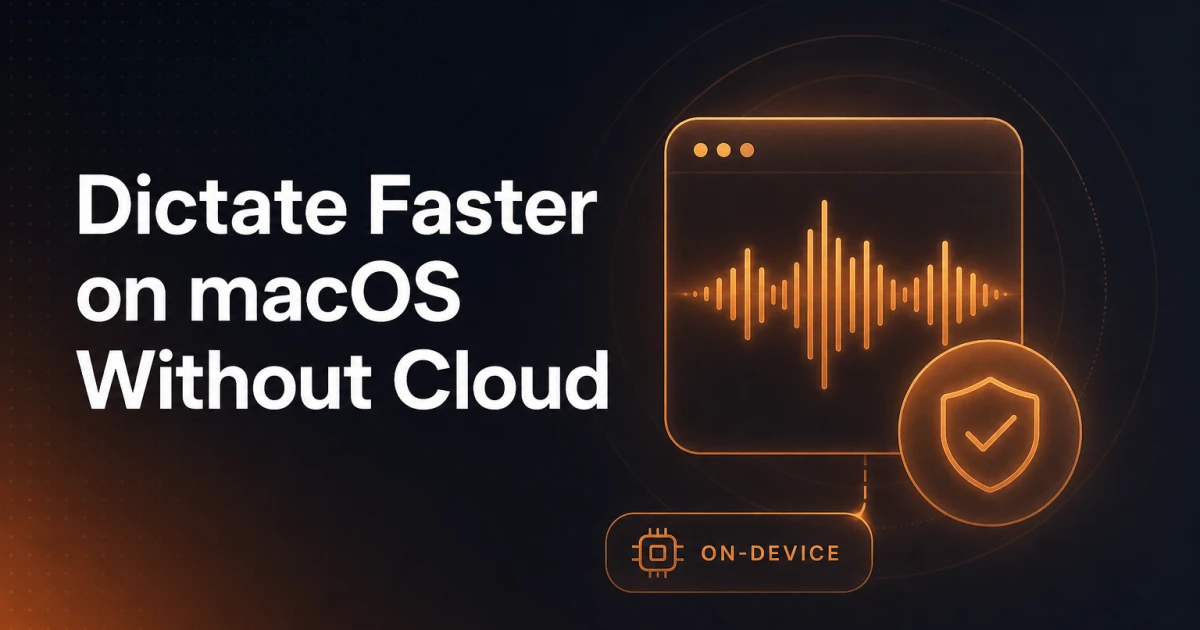
OpenAI's Whisper model, released as open weights, has been adapted for Apple Silicon through a framework called WhisperKit, developed by Argmax. WhisperKit compiles Whisper's model weights into Apple's Core ML format so they run directly on the Neural Engine. The result is transcription that happens entirely on your Mac, with no network request and no account required. After the model is downloaded once, the pipeline works offline.
Accuracy on Whisper's larger variants is competitive with cloud services for most use cases. For technical vocabulary like code-related terms, domain-specific jargon, and proper nouns, the quality is high enough that most users won't notice a difference between on-device and cloud transcription in daily use.
Why Hold-to-Talk Beats Toggle Dictation
Most dictation tools have a workflow problem that has nothing to do with accuracy. They open a separate window, ask you to pick a language, transcribe into their own text field, and then expect you to copy and paste the result into whatever app you were actually using. Each of those steps is a context switch. By the time you've switched windows, copied the text, switched back, positioned your cursor, and pasted, you've spent most of the time you saved by speaking.
Hold-to-talk works differently. You press and hold a hotkey in whatever app is currently focused, whether that's a code editor, email client, browser text field, Slack message, or terminal prompt. Speak, then release. The transcribed text appears at the cursor. There's no window to switch to and nothing to copy across. The hotkey is all there is.
That's a bigger UX shift than it sounds. It's the difference between a tool you reach for every few minutes and a tool you only use when the friction feels worth it. Dictating directly at the cursor fits into existing workflows instead of reorganizing them.
Setting Up Edicta: Step by Step
Edicta is a macOS app built around this hold-to-talk model, running Whisper on-device via WhisperKit. The full setup takes under five minutes.
Download and First Launch
After buying Edicta from its product page, you'll get a download link by email. Open the file, drag Edicta into your Applications folder, and launch it. On first launch, a setup assistant walks you through the three permissions the app needs:
Microphone access: captures audio while the hotkey is held. Grant this in System Settings under Privacy & Security, then Microphone.
Accessibility access: lets Edicta simulate the paste keystroke (Command-V) that inserts transcribed text at the cursor. Find it under Privacy & Security, then Accessibility, and toggle Edicta on.
Input Monitoring: lets Edicta detect the global hotkey even when it isn't the frontmost app. Also under Privacy & Security, then Input Monitoring.
After granting all three, a small microphone icon appears in the menu bar. Edicta runs entirely from the menu bar and doesn't keep a window in the Dock.
Choosing Your Global Hotkey
Open Edicta's settings from the menu bar icon and choose Hotkeys in the sidebar. Any key combination works, but the most ergonomic options are modifier-only keys that don't conflict with app shortcuts. Right Option is a popular choice: it sits under the right thumb, is rarely used by other apps, and can be held comfortably. Right Command or a combination like Control-Option also work well.
Click the hotkey field, press the key or combination you want to use, and Edicta registers it globally. The field updates immediately to show the key name. If you pick fn, Edicta warns you that macOS's own Dictation listens on the same key and offers a one-click switch to Right Option. Prefer not to hold a key through a long dictation? Set Activation to Toggle in the same pane: press once to start and once more to stop.
Whisper Model
On first launch, Edicta downloads the Whisper model in the background. The default is Large v3 Turbo, which is the recommended choice for most users: it balances accuracy and speed on Apple Silicon, and one model covers all 99 supported languages without per-language downloads. Once it's on disk, transcription works entirely offline.
Advanced users can switch to other variants (Tiny, Base, Small, Medium, Large v3, Distil Large v3) from Languages in settings. Switching downloads the new model in the background and loads it when it's ready. For most users the default is the right answer, and no action is needed.
Your First Dictation
Open any app with a text cursor: a document, an email, a browser search field. Place the cursor where you want text to appear, and hold your configured hotkey.
A floating pill appears near the top of the screen, a small dark rounded rectangle containing an animated waveform that pulses with your voice. That's the only visual feedback during recording, and it confirms that the microphone is active. Speak naturally and at a normal pace. There's no need to pause between words or speak unnaturally slowly.
Release the hotkey. The pill briefly shows a processing indicator while Whisper transcribes the captured audio. On an M-series Mac, that usually takes one to three seconds for a sentence. The text then appears at the cursor in whatever app was active, as if you'd typed it yourself, with no clipboard dialog or confirmation prompt and no window to switch back to.
Edicta is also careful with your clipboard. Before inserting the transcribed text, it takes a snapshot of whatever you've already copied (every item, every type and representation), writes the new text, simulates Command-V, and then puts the original clipboard contents back a moment later. Whatever you'd copied before dictating is still there afterwards. You can dictate freely between copy and paste operations without losing what was on the clipboard.
Punctuation behavior depends on your speaking style. Whisper is reasonably good at inferring sentence boundaries and inserting periods. If you need precise punctuation in formal documents, use the cleanup shortcut described below.
Switching Languages Mid-Workflow
Click the Edicta icon in the menu bar. A dropdown appears with the active transcription language at the top and the available languages below. Edicta supports 99 languages, every language Whisper handles, including Danish, Swedish, Norwegian, Finnish, German, French, Spanish, Japanese, and many more.
Click a language to switch. The next dictation session uses it immediately, with no restart needed. This is useful for multilingual writers or teams in Scandinavian markets who move between languages during a single working session. The setting persists across relaunches.
The Optional Assistant Mode
Edicta also includes an optional assistant feature that uses Anthropic's Claude to answer context-aware questions about whatever is on your screen. The mode works differently from core dictation and has a separate privacy model that's worth understanding clearly.
To use it, you supply your own Anthropic API key in Edicta's settings. When you trigger the assistant, Edicta transcribes your question on your Mac, captures a screenshot of your active window, and sends both straight to Anthropic's API, using your key and under your account. If you switch on Send the text I have selected in the Claude settings, any text you have selected goes along too. Your audio never leaves your Mac, and Signocore never receives or stores any of this: the screenshot and the text of your question go from your Mac to Anthropic, with nothing in between.
That distinction matters. The assistant mode is opt-in, requires your own API key, and the data path is fully transparent: your device to Anthropic, nothing in between. Without an API key configured, nothing is sent: Edicta tells you the key is missing instead.
The Optional Cleanup Shortcut
Edicta also has a third hotkey, fn plus Control by default, that dictates exactly like the normal one and then hands the finished transcript to Claude before pasting. Claude fixes punctuation and capital letters and removes filler words and false starts, while keeping your wording and your language. It uses the same API key as the assistant. Only the transcribed text is sent, never the audio, and if Claude is slow or unreachable, Edicta pastes your raw transcript instead, so you never lose what you said.
Where Dictation Fits in a Real Workflow
The practical value becomes obvious when you map hold-to-talk dictation onto the actual places where knowledge workers type:
Code editors: dictate variable names, function descriptions, inline comments, and documentation strings directly into VS Code, Nova, or any other editor. The cursor stays in the file, and there's no context switch.
Email and Slack: compose replies at speaking speed. In Slack especially, where short responses dominate, hold-to-talk is faster than typing for anything more than a few words.
Browser fields: search bars, CMS text fields, form inputs, web-based editors like Notion or Linear. They all accept pasted text, which means they all work with Edicta.
Terminal: dictate git commit messages, command flags you can't quite remember, or longer shell-script comments. The paste lands at the prompt like any other input.
Writing tools: for longer-form drafting in Ulysses, Obsidian, Bear, or plain Markdown files, dictation at the cursor removes the friction of typing while thinking. Capture the thought at speaking speed and refine it later.
The thread running through all of these is that none of them require changing apps. The cursor is already where you need it, and the hotkey activates dictation in place.
Troubleshooting Common Issues
Hotkey Not Detected
If holding the hotkey does nothing, the most common cause is a missing Input Monitoring permission. Open System Settings, go to Privacy & Security, then Input Monitoring, and check that Edicta is listed and enabled. If it's listed but the toggle is off, enable it and relaunch Edicta. If it's not listed at all, remove and re-add it using the plus button.
Third-party mechanical keyboards, particularly those running custom firmware, sometimes don't emit the expected key codes for modifier keys like Right Option. If your keyboard uses QMK or similar firmware, check that Right Option is mapped to the standard Right Alt keycode (0xE6 in HID terms) rather than to a custom code. Otherwise, pick a different hotkey that your keyboard emits reliably.
Text Not Pasting at the Cursor
If transcription completes but the text appears in the wrong place or doesn't appear at all, check the Accessibility permission. Edicta uses the Accessibility API to simulate Command-V. Without that permission it cannot paste, so it leaves the transcript on the clipboard and tells you, and you can paste it yourself with Command-V. Some apps with strict security sandboxing block simulated keystrokes entirely. There, Edicta restores your original clipboard right after the attempt, so the text is not left behind. Switch on transcript history under Dictation in settings, and your latest transcripts are always one click away in the menu bar, ready to copy into any app.
Transcription Quality Issues
Poor transcription quality usually has one of three causes. First, microphone selection: if your Mac has more than one audio input, check that Edicta is using the right one. Built-in microphones on MacBooks are adequate, but external USB microphones noticeably improve accuracy. Second, language mismatch: if the selected language doesn't match what you're speaking, Whisper will still try to transcribe but the results will be poor. Check the language setting in the menu bar dropdown, or switch on Detect the language automatically under Languages in settings and pick Automatic from the menu bar. Third, names and jargon: if a product name or technical term keeps coming out wrong, add it to Vocabulary under Dictation in settings, or write a replacement rule that swaps the misheard version for the right one.
The Complete Privacy Picture
Here's what stays on your Mac and what doesn't:
Stays on the device: all audio, all transcription processing (handled by Whisper via WhisperKit on the Neural Engine), everything you dictate without the cleanup shortcut, clipboard contents, transcript history if you switch it on, and any usage data.
Leaves the device only when you use Claude: with the cleanup shortcut, the transcribed text; with the assistant, the text of your question, a screenshot of your active window and, if you switch it on, your selected text. Both go directly to Anthropic with your own API key, and neither does anything until you add that key.
Never transmitted at all: your audio, anything you dictate or ask to Signocore, or telemetry about your dictation sessions.
That's a real departure from cloud dictation services, where the core transcription function itself requires a network connection. With Edicta, the network plays no part in the transcription pipeline at all. The two optional exceptions are the cleanup shortcut and the assistant, and their data path is explicit and under your control.
For anyone handling sensitive material (client work, legal or medical content, unreleased software, or anything covered by a confidentiality agreement), on-device transcription is the only defensible option. And since it's now as accurate and as fast as the cloud alternatives, there's no real reason to keep accepting the trade-off.
Speaking is a natural way to capture thought, and the bottleneck was never speech itself but the infrastructure needed to process it privately. On Apple Silicon, that part of the problem is solved. Your words stay on the machine in front of you and turn up in your editor, your email, your terminal, or your CMS, without being sent anywhere you didn't choose.
If you find yourself reaching for other tools in your workflow, the Signocore developer tools collection includes utilities like the JSON Formatter, Regex Tester, and Diff Checker. All of them are browser-based, free, and don't require an account.